
Design age verification flow for gaming and social platforms
Combine Age Estimation and documentary verification to manage applicants on online platforms based on their age.
Some jurisdictions may require gaming and social platforms to set various age limitations to restrict access to the entire platform or to certain content intended only for specific age groups.
At Sumsub, at the most basic level we offer a secure verification flow that includes both a Liveness check and identity verification via documents to perform a face match, confirm that there is a real person present, and verify their proof of identity.
Alternatively, we provide a more flexible option designed to boost your conversion while staying on the safe side. With Workflow Builder, you can combine both the documentary flow and Age Estimation via Liveness to create a comprehensive scenario that considers different conditions and performs further actions, such as rejection or additional age verification.
Create Age Estimation-based verification scenario
Add verification steps to determine the applicant’s age using Liveness technology and make further decisions based on the estimated value: reject the profile or request additional age confirmation.
Step 1. Enable Age Estimation product
Contact Sumsub business support at [email protected] to get started with the Age Estimation solution. Once enabled, you will be able to detect the applicant's age via Liveness and include this step in the age verification flow.
Step 2. Create verification levels
You will need to add two verification levels serving different goals:
- The first level should include the Selfie step only to perform Liveness and estimate the applicant’s apparent age. This level allows you to reject applicants who clearly violate the established age restrictions.
- The second level should include both the Identity document and Selfie steps to request documents for age approval if the applicant’s apparent age may meet the allowed age defined in the restrictions.
NoteApplicants will not be asked to pass Liveness again during age approval if they have already completed this step earlier.
The biometric data will be reused, and they will only need to provide an identity document to confirm their age and verify that they are the same person as in the Liveness check.
To add the initial age estimation level:
- Create a verification level including the Selfie step (select the Advanced liveness check option).
- Configure the level settings and save the changes.
To add the verification level for age approval:
- Create and configure another verification level.
- Include the Selfie (select the Advanced liveness check option) and Identity document steps.
Step 3. Add nodes to reject profiles based on estimated age
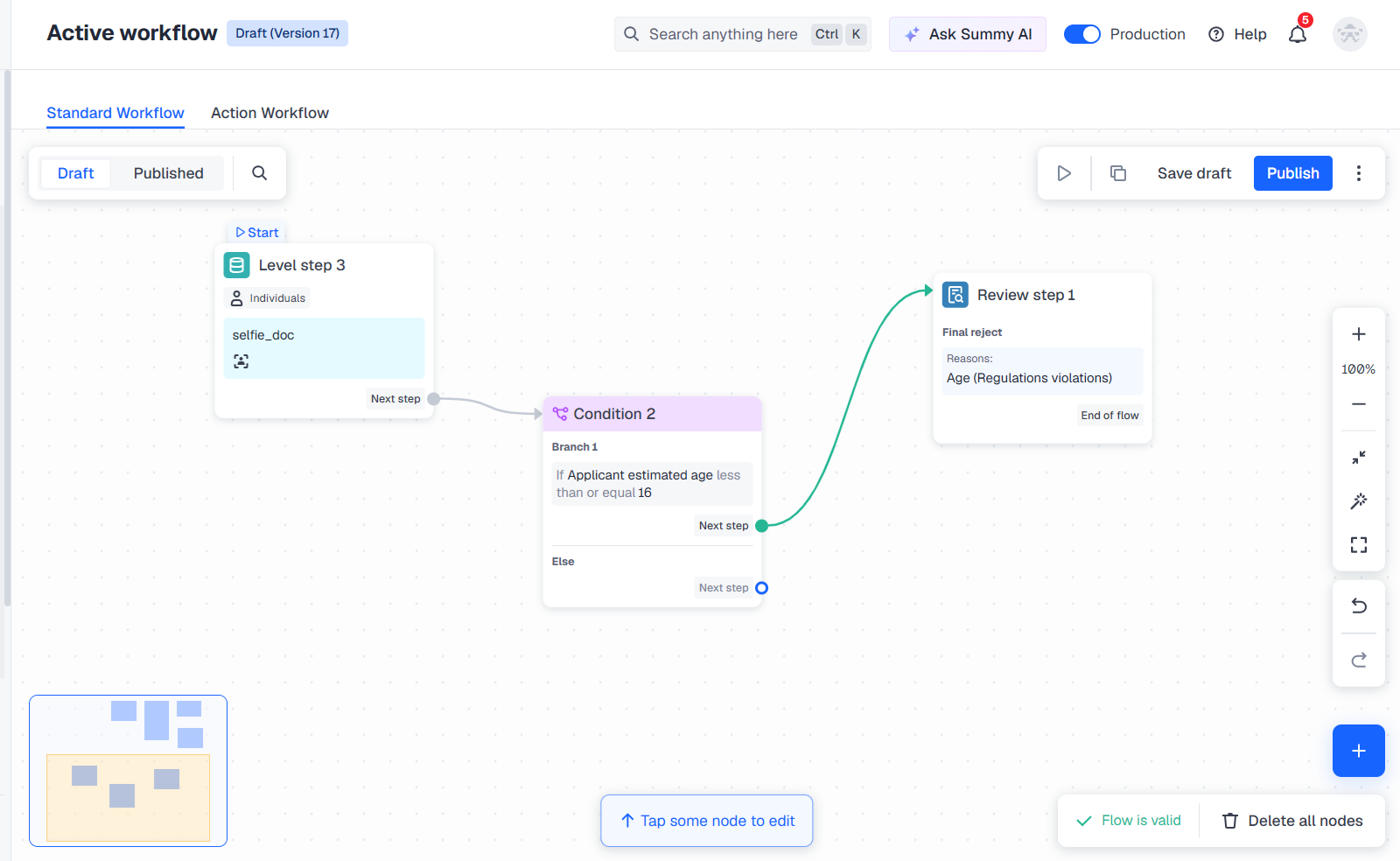
Navigate to the Workflow Builder canvas to add a sequence of steps that reject profiles whose apparent age seems clearly inappropriate.
To build this branch:
- Add the initial Level step node:
- In the Dashboard, go to Workflow builder and select Active workflow.
- Navigate to the Standard tab and go to the Draft view.
- Add a level step to the canvas and attach the previously created verification level with the Selfie step by selecting it from the list.
- Configure conditions:
- Click on the initial node created earlier and select Condition as the next step.
- Within the new node, select the If logical operator.
- From the Field drop-down list, select the
applicant.derivatives.estimatedAgeparameter. - Set a logical condition (for instance, less than or equal) and specify the age value.
- Add and set up the Review step node to reject applicants with insufficient apparent age:
- Within the Condition node, select the Review step as the next step.
- In the Review step configuration, identify the type of terminal step—select Final reject.
- Specify reasons or add labels that will explain the decision.
Step 4. Add nodes to request age approval
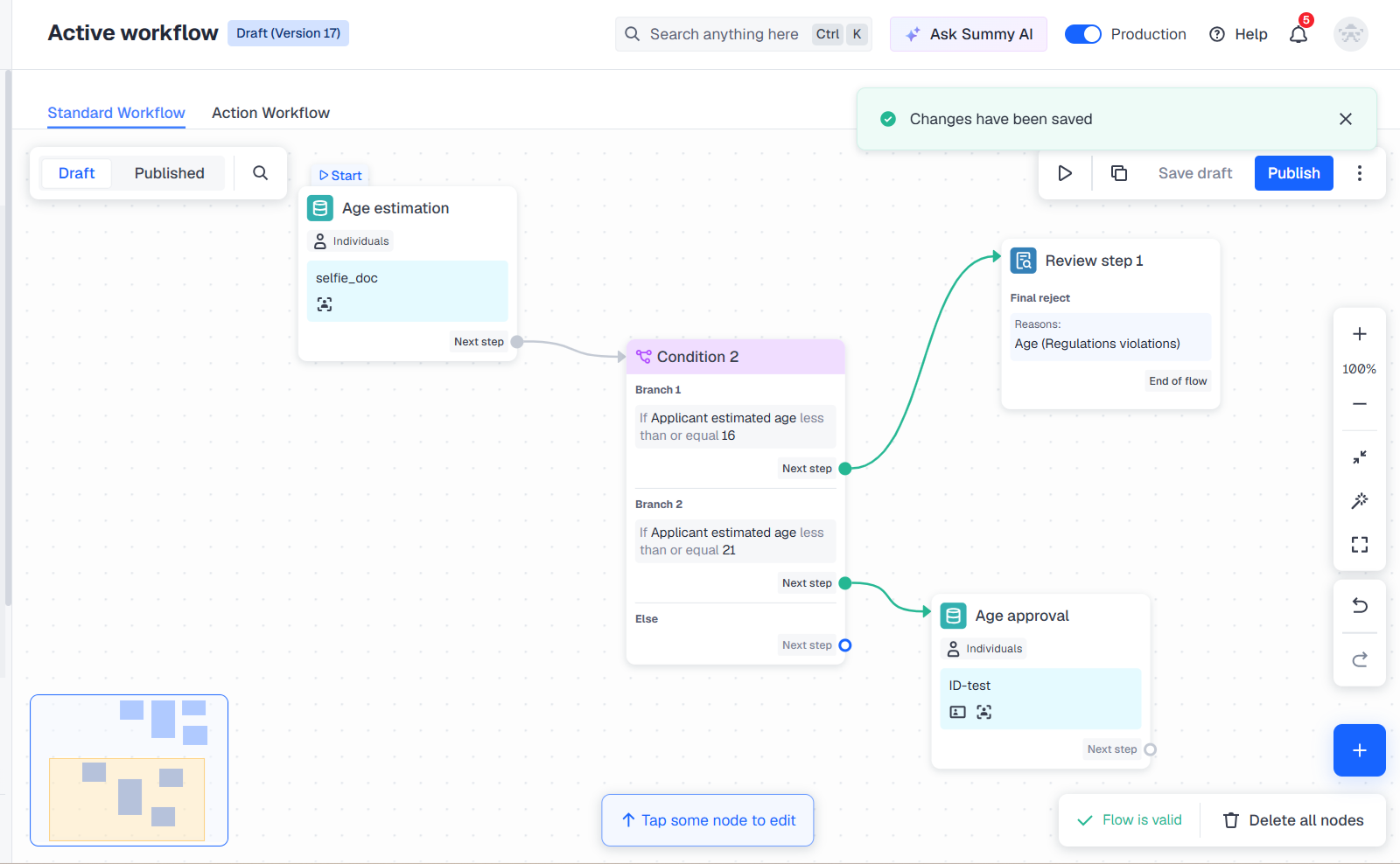
Create another branch on the canvas to request documentary age approval if the applicant’s apparent age possibly meets the allowed age defined in the restrictions.
To add another branch:
- Navigate to the Condition node created earlier and click Add new branch.
- Configure conditions:
- Select the If logical operator.
- From the Field drop-down list, select the
applicant.derivatives.estimatedAgeparameter. - Set a logical condition (for instance, less than or equal) and specify the age value.
- Within the created condition branch, click Choose next step and select Level step.
- Adjust the level node settings:
- From the Level name field, select the verification level that includes both the Identity document and Selfie steps.
Step 5. Add nodes to reject profiles whose age is inappropriate
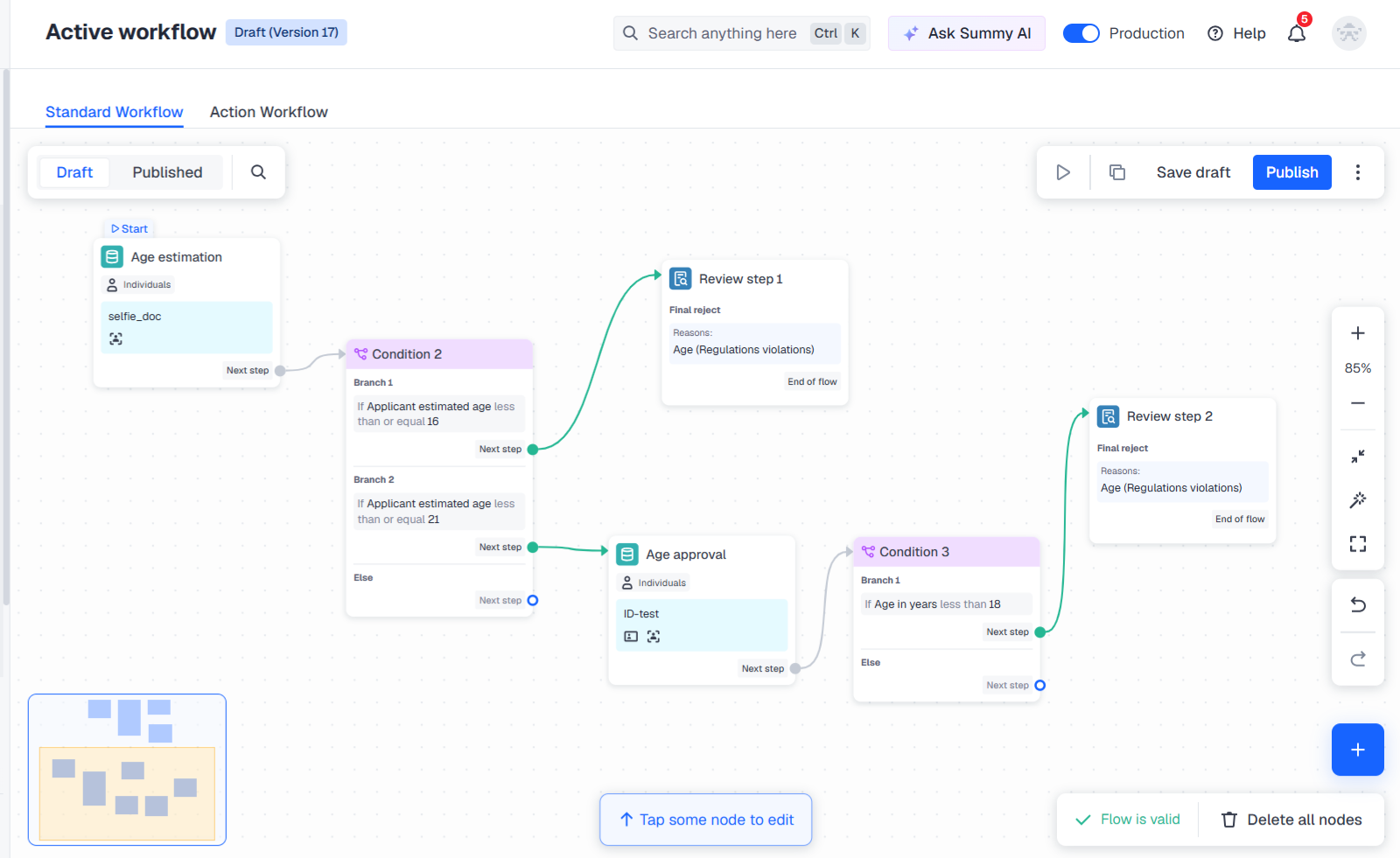
Include one more branch to verify the applicant’s age based on the documents and reject the applicants if their age does not meet the value set in restrictions.
To add the branch:
- Navigate to the Level step node created earlier and click Choose next step.
- Select Condition.
- Configure the Condition node:
- Select the If logical operator.
- From the Field drop-down list, select the
applicant.createdAt.ageInYearsparameter. - Set a logical condition (for instance, less than) and specify the age value.
- Add and set up the Review step node to reject applicants of insufficient age:
- Within the Condition node, select the Review step as the next step.
- In the Review step configuration, identify the type of terminal step—select Final reject.
- Specify reasons or add labels that will explain the decision.
Step 6. Start using flow
Once the flow is created and configured, you can save the draft, perform test verification, and publish the flow to run the checks:
- Save the draft and experiment with your flow — create copies and conduct tests.
- Publish the flow to go live once the flow configuration is tested.
Step 7. Receive verification results
Get verification results via the webhooks or view them in applicant profiles.
Updated 16 days ago