
Conduct driver verification
Verify drivers to to safeguard vehicles and maintain access control.
If your service rents out vehicles, driver verification is a crucial process for asset protection and access control. With Sumsub, you can hand over vehicle access being confident that a renter is the account holder, has a valid license (including the required category), and meets the minimum age requirement.
Shape your own scenario in Workflow Builder by adding document verification and biometric checks, and tailoring a custom rejection logic based on specific conditions. This gives your service an additional layer of security against the following threats:
- Vehicle theft.
- Unlicensed renters.
- Wrong-category drivers.
- Account renting and sharing.
Build driver verification flow
Create a comprehensive verification scenario to confirm the driver's license, age, and license category before granting vehicle access.
Step 1. Create verification level
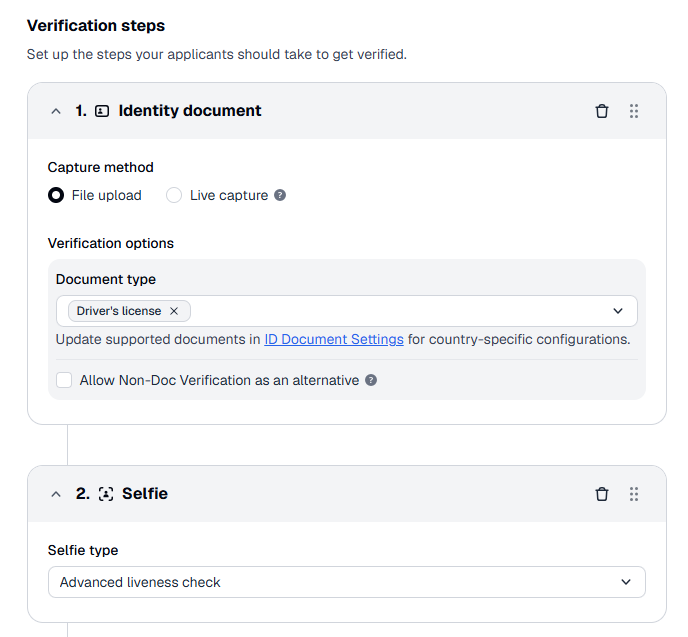
Add a dedicated verification level that requires a renter to provide a driver’s license and pass a Liveness check:.
- Create the verification level that includes both the Identity document and Selfie steps.
- In the Identity document step, set the Driver's license document type.
- In the Selfie step, select the Advanced liveness check option.
- Configure the rest of the level settings as required.
Step 2. Add initial verification node
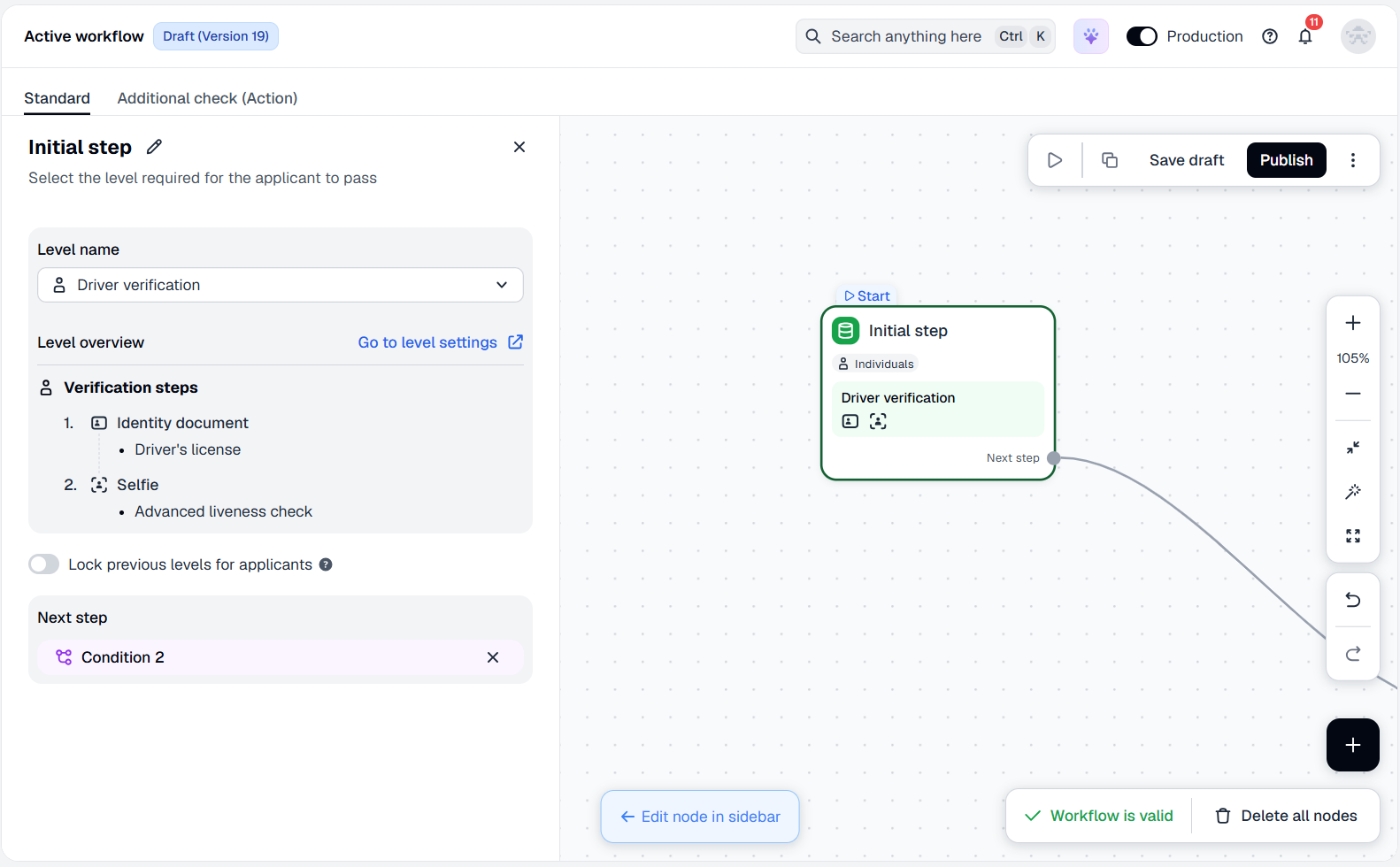
Go to Workflow Builder to place the level node, which launches the verification flow. To add the Level step node:
- In the Dashboard, go to Workflow builder and select Active workflow.
- Navigate to the Standard tab and go to the Draft view.
- Add Level step to the canvas and attach the previously created verification level by selecting it from the list.
Step 3. Flag unqualified drivers
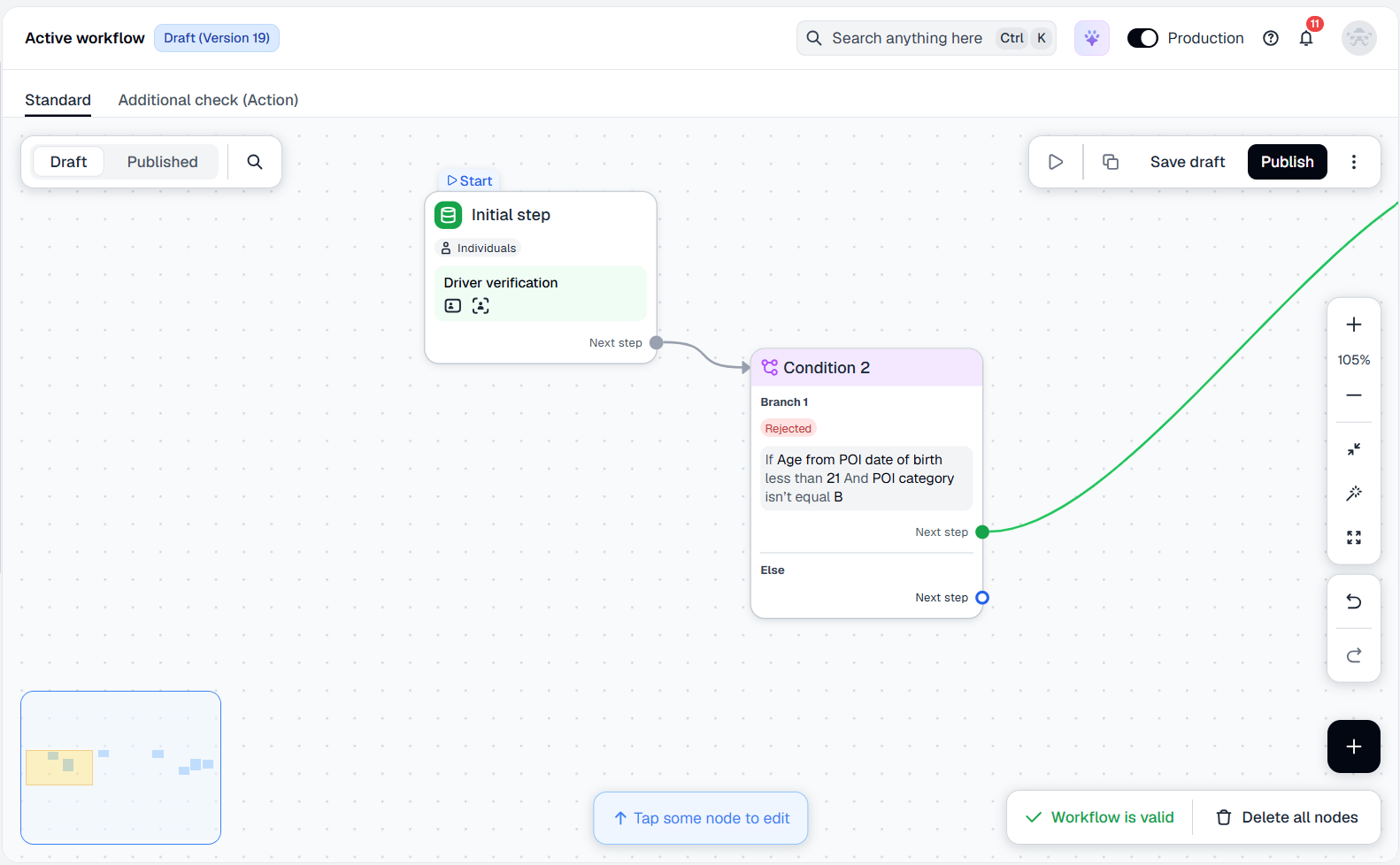
Configure the conditions that will consider age and license category to define who should be rejected.
Set up the conditions:
- Click on the initial node created earlier and select Condition as the next step.
- Set Review decision to Rejected.
- Select the If logical operator.
- From the Field drop-down list, select the
poi.dob.ageInYearsparameter. - Set a logical condition (for instance, less than or equal) and specify the age value.
- Add a condition for another criterion (for example, driving category):
- Within the same branch, click And.
- From the Field drop-down list, select the
poi.categoryparameter. - Set the logical condition to isn't equal and specify the required value below.
NoteThe
poi.categoryparameter is an additional field that is not extracted by default. To enable it, purchase the Additional ID fields extraction (Additional data extraction) feature using an Owner account, or contact your Customer Success Manager.
Step 4. Set up driver rejection
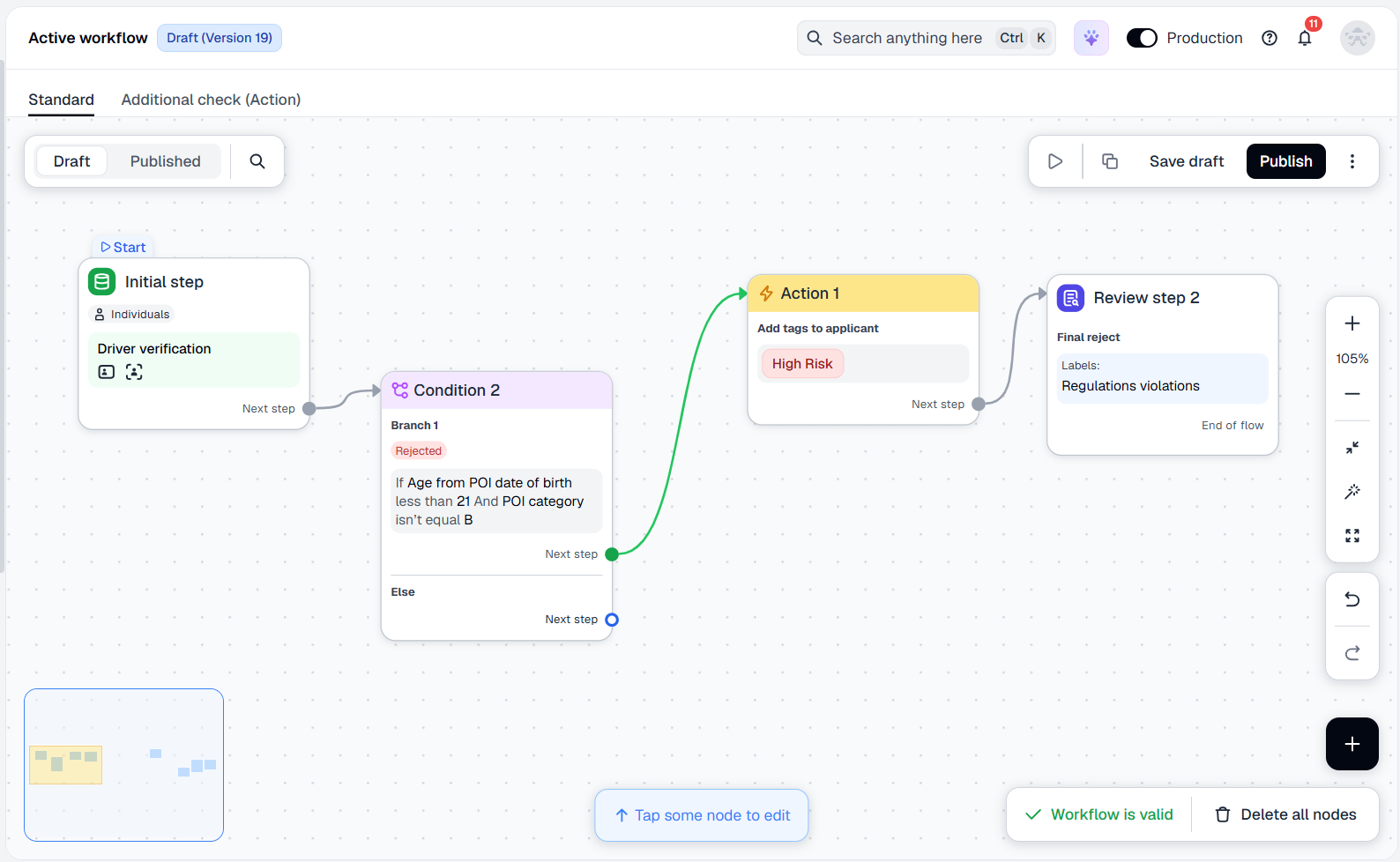
Add nodes that define how the rejection will work in your scenario: use an Action node to add tags, and a Review step node to reject unsuitable applicants.
Configure the rejection nodes:
- Within the Condition node, select Action as the next step.
- Select the type of action: Manage tags.
- Select the Add tags checkbox.
- From the drop-down list below, choose the required tags to assign.
- Click Choose next step and select Review step.
- In the Review step configuration, identify the type of terminal step: select Final reject.
- Specify reasons or add labels to explain the decision.
Step 5. Start using flow
Once the flow is created and configured, you can save the draft, perform test verification, and publish the flow to run the checks:
- Save the draft and experiment with your flow — create copies and conduct tests.
- Publish the flow to go live once the flow configuration is tested.
Step 6. Receive verification results
Get verification results via the webhooks or view them in applicant profiles.
From here, every rental request is checked automatically against the driver age and license requirements — the flow decides in seconds whether a renter is fit to drive, approving qualified renters instantly and flagging the rest with the exact reason for rejection.
Looking to explore driver verification solutions beyond this workflow? Get in touch with our team to discuss your platform's needs.
Updated 27 days ago