
Applicant risk scoring
Make informed decisions based on multiple factors and their weight.
Applicant risk scoring assesses applicants and their activity in real-time based on the applicant events (transactions, sign-up, login, and so on) received via the API. Each event is screened through multiple factors, each weighted differently depending on its importance and dedicated threshold (level).
Such a flexible approach allows for the creation of customizable risk profiles, adapting dynamically to user-specific criteria and guaranteeing accurate and timely risk assessment.
The multi-factor risk score shows how likely a user is to engage in suspicious or fraudulent behavior. It might be calculated based on multiple factors, signals received from any of the Sumsub features or datapoints provided by the customer, such as:
- Onboarding score performed by pre-checks (email, phone, social data).
- Applicant factors such as location, age, name.
- Payment method check results.
- Number of payment accounts used.
- Usage of untrusted and risky devices.
- Source of Income based on questionnaire (SoI/SoF).
- Transaction risk score.
- Shareholders data for companies and many more.
The score helps companies decide whether to investigate their users further, apply additional checks, or reject them.
You can use the risk factors to create a custom risk matrix and categorize the detected risks as low, medium, or high to help companies prioritize them.
How applicant risk scoring works
Ongoing risk assessment utilizes risk factors represented by scoring transaction tags. You can manage tags to customise risk assesment:
- Create a tag for any risk factor related to your applicants.
- Specify the weight for it.
- Decide whether to include it in the total score.
- View the rules it was used in. Adding tags to the rules allows Sumsub to summarize their weights and produce the final risk score associated with an applicant as a separate output tag.
- Add dependent tags.
- Edit and remove tags from applicant scoring.
- Use risk scores to define an applicant's risk level.
NoteThe transaction tags differ from the applicant tags as they are associated particularly with transactions versus that of applicant tags, which are always associated with your applicants. The applicant tags can be set up on the Tags page in the Dashboard.
The table below shows tag examples that you can use to express risk factors:
|
Sample factor |
Description |
|---|---|
|
Onboarding score |
Onboarding behavior signals. |
|
Geo factor |
IP-based applicant residence detection results. |
|
Payment risk factor |
|
|
Device |
Device factor. |
|
SoI |
Source of income. |
|
Txn risk |
Transactional factor. |
Set up applicant risk scoring
To allow Sumsub to calculate the risk score, you need to enable it for a specific level. If you have never used applicant risk scoring before, contact your dedicated Customer Success Manager at [email protected].
Step 1: Enable applicant risk scoring
To set up applicant risk scoring:
- In the Dashboard, go to the Verification levels section and open the level of your interest.
- Navigate to Configurations and open Advanced settings.
- Check the Track Verification sessions box.
Step 2: Create tags
You can create a new tag from the Applicant risk scoring page by clicking Add tag and selecting Create new tag option.
Alternatively, you can do it directly on the Tags page and then add new tags on the Applicant scoring page.
After you open Tags page, perform the following:
- Сlick Add tag.
- Enter the tag name and choose the bar color.
- Save your changes.
Step 3: Set up applicant scoring
After enabling this feature, configure its settings:
- In the Dashboard, navigate to the Transactions and travel rule section and open Settings.
- On the Applicant scoring page, select the tag you want to adjust.
- Select the Include in total score box to add the selected tag score to the total risk score.
- Adjust the tag weight (the % of the rule score applied to the tag based on your risk model).
- If needed, add a dependent tag by clicking on the tag icon on the right.
- Click Save to apply your changes or Cancel to discard them. If you leave the page without saving, you will be prompted to confirm.
Step 4 [Optional]: Set up Associated parties scoring
You can configure the Associated parties scoring feature to assess risk scoring weights for company-related applicant roles, such as UBOs and representatives. The resulting beneficiary assessment can be used to complement and recalculate the company risk score — beneficiary values are added to the company risk scoring weight.
To enable and set up associated parties scoring:
- On the Applicant scoring page, navigate to the Associated parties section.
- Select Add new structure member and choose the type (Director, UBO, and so on) to add a new associated party type for scoring.
- Add multiple associated party types if needed.
- Set the weight for each associated party type. To remove the type from scoring, click the remove icon next to it.
- In the Scoring logic column, select the function that defines how the individual member scores of the selected role are combined into that role's score. The following options are available:
Score Calculation method Max Use the highest member score. Average Average all member scores. Sum Add up to all member scores. - For UBO and Shareholder roles, optionally select Apply ownership % to weight each member's score by their ownership share before the function is applied. When enabled, each member's score is multiplied by that member's ownership percentage; a member without a share is counted with a multiplier of 1.
A newly added structure member defaults to the Max function, and Apply ownership % is pre-selected for UBO and Shareholder roles. - Save your changes.
Tip
- The total associated party role score for the company is calculated as the sum of all associated party risk scores multiplied by their configured weights, applicable ownership percentage and member scores. Based on this, applicant risk scoring should be enabled and configured for both verification levels used for associated party verification and the related company.
- Use the
has(applicant.allMemberRoles, 'roleName')expression when configuring a rule condition for associated parties risk scoring.
Step 5: Add tags to rules
To add a tag to a rule:
- Create a rule and set up its condition.
- In the rule actions, navigate to Add tags to the transaction and add the necessary scoring tag to the rule.
- Set up the score for each rule, which will be taken into the calculation of each risk factor.
Grouping tags
A grouping tag with dependent tags added to this parent tag calculates its score from those dependent tags.
- You cannot add a dependent tag to a tag that already has rules attached to it. Remove or unlink the rules first if you want to add dependent tags to it.
- You cannot add a tag to a rule if it already has dependent tags. On the rule edit page, such tags are disabled in the tag selector, with a tooltip explaining why.
A tag either holds its own rules, or has dependent tags — not both.
If your account has tags configured before this update, the Applicant Scoring page shows a warning banner whenever a tag with dependent tags still has rules attached to it.
- Open the tooltip on the affected tag to see the details.
- Click Unlink inside the tooltip to detach the rule from the tag in one click. Unlinking does not delete the rules — they stay active, just no longer attached to that tag.
Step 6: Assign risk levels
Risk levels allow you to group applicants and apply various policies, both within Sumsub and on your own platform. To learn more about risk levels, refer to this article.
Manage version history
Each update you make to the applicant risk scoring configuration is saved as an independent revision, allowing you to review or revert to previous configurations.
To view the version history:
- In the Dashboard, open the Applicant risk scoring page.
- In the top-right corner, select Version history.
- In the opened view, scroll down to view previous versions of the configuration and select a revision to see its details. A badge next to each version briefly outlines the respective changes.
Restore previous version
Besides viewing past revisions, you can restore a previous version of the applicant risk scoring configuration. This action requires the Manage applicant risk scoring settings permission.
To restore a version:
- Open Version history and select the revision you want to restore.
- Click Make actual and confirm.
NoteWhen you restore a revision:
- Its configuration, including both the risk matrix and the risk level thresholds, replaces the current settings. The restored configuration is saved as a new revision labeled Restored from Version X, ensuring no history is lost.
- Tags associated with the previous version are removed because they are no longer linked to the rules in the restored version.
- Rules remain unchanged. Links between tags and rules always reflect your current configuration. If a rule was deleted or its tags were modified after the revision, manually re-add the tag to the rule.
- Previously scored applicants retain their current score and risk level until their next scoring event or until you select Force rescore.
Review applicant risk scoring results
To view total score, do the following:
- Navigate to the Applicants page and open Individuals or Companies tab.
- Select the applicant of your interest and go to the Overview section.
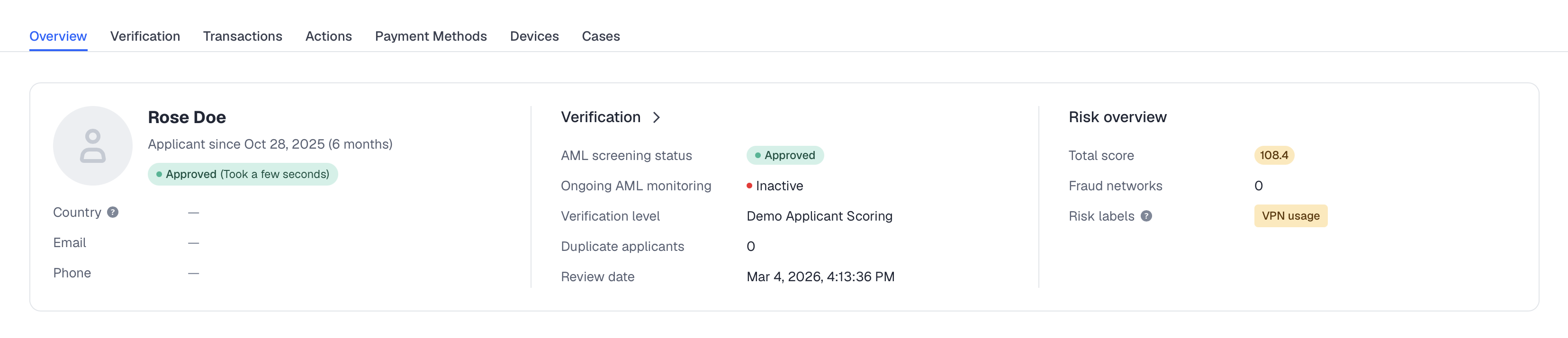
Alternatively, navigate to the Transactions section of the applicant profile and check the Risk score breakdown block.
Along with the total risk score, we display Additional risk indicators — supplementary risk signals detected for the applicant. These indicators provide extra context for manual review but do not directly contribute to the total risk score and dedicated risk level.
For example, they may include antifraud scores for the applicant’s IP address, device, phone, or email, as well as scores from other verification or onboarding checks.
To see how Sumsub calculated a specific score, click the info icon next to the corresponding risk factor or additional risk indicator.
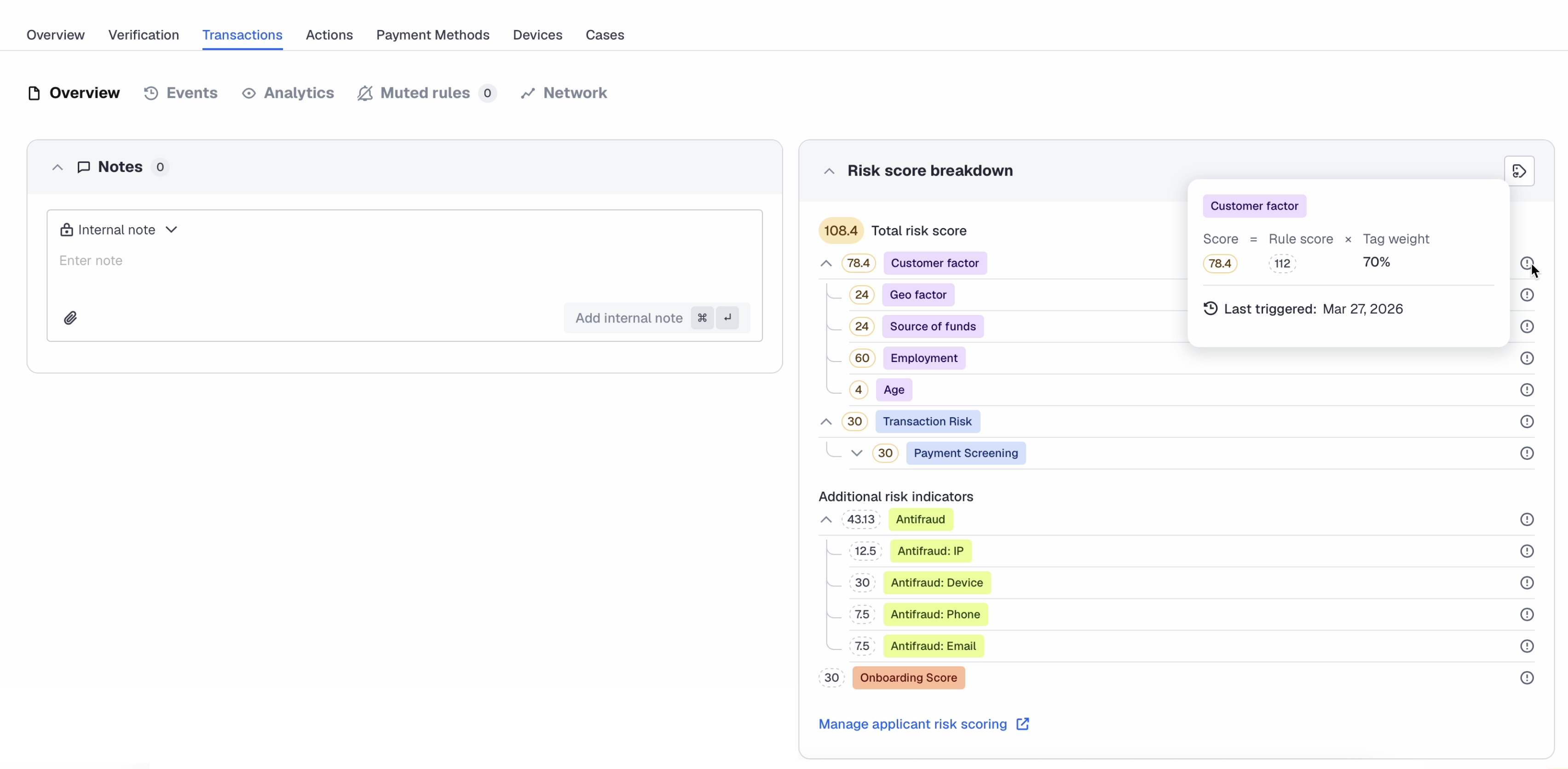
Each time the rule containing the scoring tag is triggered, the system updates the total risk score in the applicant profile as per the most recent transaction.
To get the scoring results, use this API method and see the scoringResult object. Response example:
{
  "id": "69f0721264ade593a3b99500",
  "applicantId": "69f0759064ade593a3b9923e",
  "counterpartyApplicantId": "69f0721264ade593a3bf40e",
  "scope": "events",
  "externalUserId": "selfcopied-8789g6d-1565-4004-bb75-acd4261bd014",
  "clientId": "46478hg58950d80774gj7793",
  "data": {
    "txnId": "03e47b09-f77e-4da8-9b58-4925e4ddadca",
    "txnDate": "2026-04-28 08:38:42+0000",
    "applicant": {
      "externalUserId": "87496a6d-1565-4004-ad5780-acd4261bd014",
      "fullName": "Rose Doe",
      "fullNameEn": "Rose Doe",
      "type": "individual",
      "paymentMethod": {
        "type": "card",
        "accountId": "5555 7700 4437 8890"
      }
    },
    "counterparty": {
      "externalUserId": "87496a6d-1565-4004-ad5780-acd4261bd014",
      "fullName": "Rose Doe",
      "fullNameEn": "Rose Doe",
      "type": "individual"
    },
    "type": "finance",
    "info": {
      "type": "deposit",
      "direction": "in",
      "amount": 10500,
      "currencyCode": "EUR",
      "currencyType": "fiat",
      "amountInDefaultCurrency": 10500,
      "defaultCurrencyCode": "EUR",
      "paymentDetails": "Deposit"
    }
  },
  "score": 20,
  "review": {
    "reviewId": "dlLhj",
    "attemptId": "FqpCH",
    "attemptCnt": 5,
    "elapsedSincePendingMs": 78,
    "elapsedSinceQueuedMs": 78,
    "createDate": "2026-04-28 08:44:07+0000",
    "startDate": "2026-04-28 08:44:07+0000",
    "reviewStatus": "awaitingUser",
    "confirmed": false
  },
  "createdAt": "2026-04-28 08:38:42+0000",
  "modifiedAt": "2026-04-28 08:38:42+0000",
  "scoringResult": {
    "score": 20,
    "dryScore": 0,
    "matchedRules": [
      {
        "id": "69f0721264ade593a3b7724f",
        "name": "high-dep-cc-req-EhEX",
        "revision": 1,
        "title": "High Deposit CC Request",
        "score": 20,
        "dryRun": false,
        "action": "awaitUser",
        "stage": "eval",
        "stopOnMatch": false
      }
    ],
    "action": "awaitUser",
    "ruleCnt": 1,
    "dryRunRuleCnt": 0,
    "applicantActions": [
      {
        "applicantActionId": "69f03857dace58ee8d8280ae",
        "externalActionId": "paymentMethod-2e09caa0-6fa0-476d-ad49-656781bfd686"
      },
      {
        "applicantActionId": "69f0729af84b7e89d09826d8",
        "externalActionId": "paymentMethod-02ff772b-b1bd-49b1-a5aa-65bd31855d6j"
      }
    ]
  },
  "txnInactive": false
}
Change applicant risk level manually
To manage applicant risk-scoring results, you need the changeApplicantRiskLevel permission.
To change applicant risk level:
- Navigate to the Applicants page and open the Individuals or Companies tab.
- Select the applicant of your interest and go to the Transactions section.
- Click Override and select the risk level from the drawer.
- Select the Lock level checkbox or click the lock icon to prevent the level from changing for the defined period. To resume automated scoring, click the lock icon again.
- Add a note explaining the reason for changes.
Important
- Locking a level prevents it from changing automatically, though the underlying risk score will still be recalculated.
- If the level is locked, any changes made to risk level thresholds on the Applicant Risk Scoring settings page also do not automatically update previously scored applicants. Their risk levels are only recalculated when a new scoring event occurs for that specific applicant.
Updated about 11 hours ago