
Partner management
Manage who you share verification data with using Sumsub services.
To share verification data using services like Copy Applicant, Reusable KYC, or Reusable KYC Gateway, first add the Sumsub clients you want to share with to your Partners list.
Once you have agreed to use a relevant service, you will have access to the Partners section found in the Reusable Identity section in the Dashboard. On this page you can view, add, or remove donors and recipients.
Add donor
Donor is a company that will share their verification data with you. To add a new one, do the following:
- In the Dashboard, navigate to the Reusable identity section and open the Partners page.
- On the Donor tab, click Add donor. Sumsub will automatically generate a partner token.
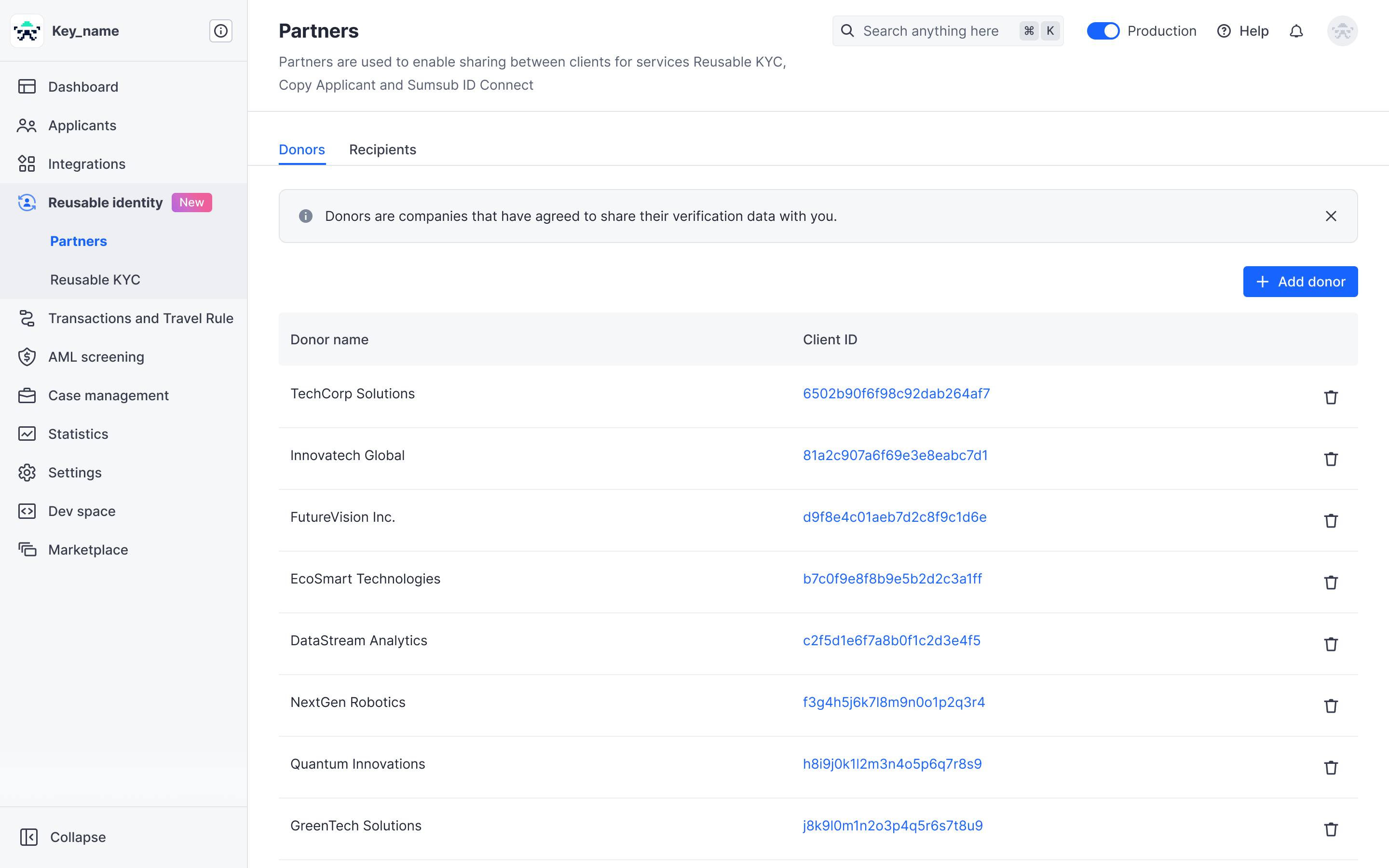
- Copy the partner token and send it to the donor company. They can import it to add you as their recipient directly in their Dashboard.
Note
When generating a partner token, make sure to use the token in the same environment where it was created. You can identify the environment by the token prefix:
- In the Production environment, the system automatically adds the
Ivprefix to the token. - In the Sandbox environment, the system automatically adds the
sbxprefix to the token.
If you use a token created in Sandbox in the Production environment, the partner will not be created.
- In the Production environment, the system automatically adds the
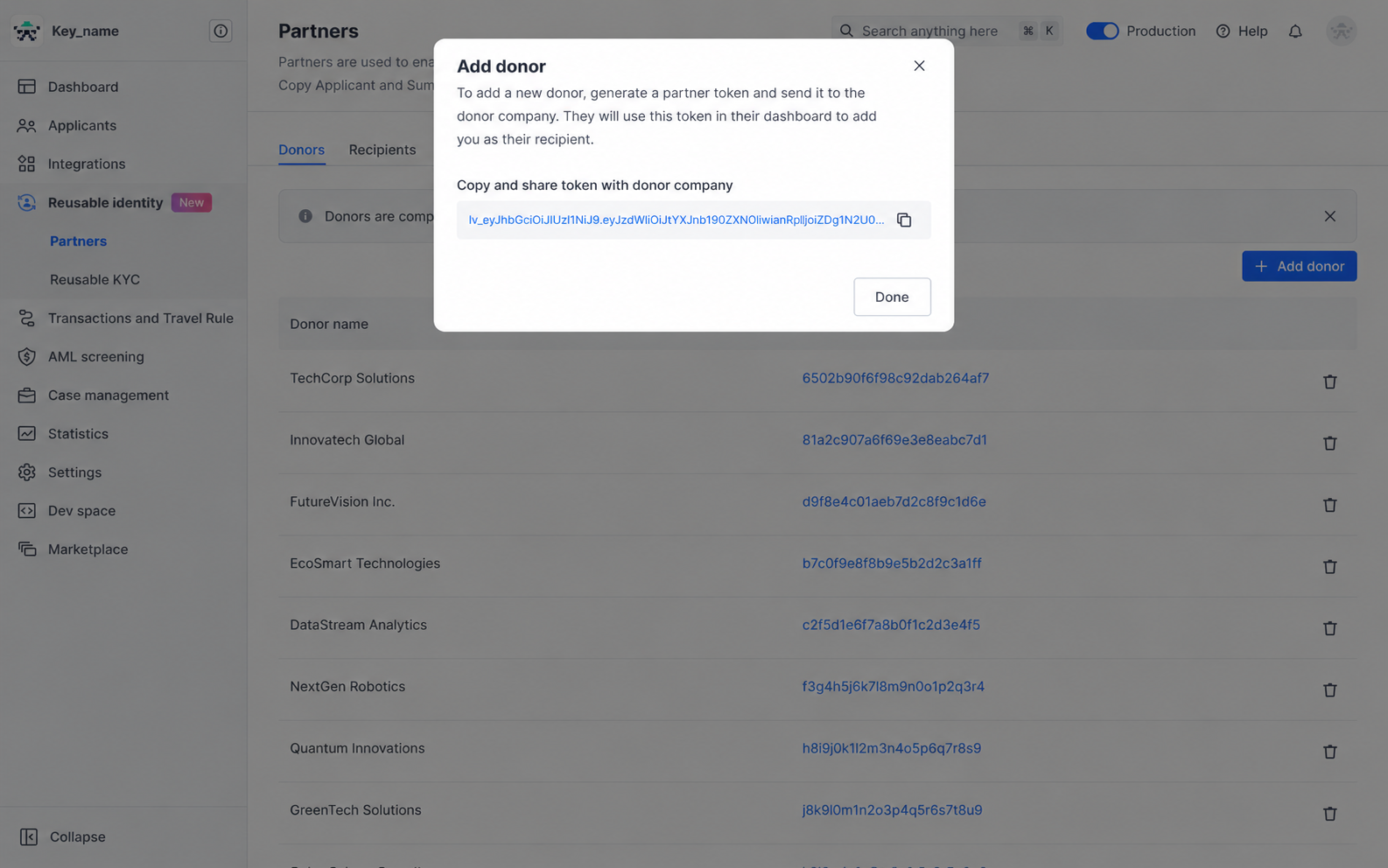
Once the donor completes the setup, they will appear on your donor list.
Add recipient
Recipient is a company that you will share your verification data with. To add a new one, do the following:
- Get a partner token from the company you want to add as a recipient.
- In the Dashboard, navigate to the Reusable identity section and open the Partners page.
- On the Recipients tab, click Add recipient.
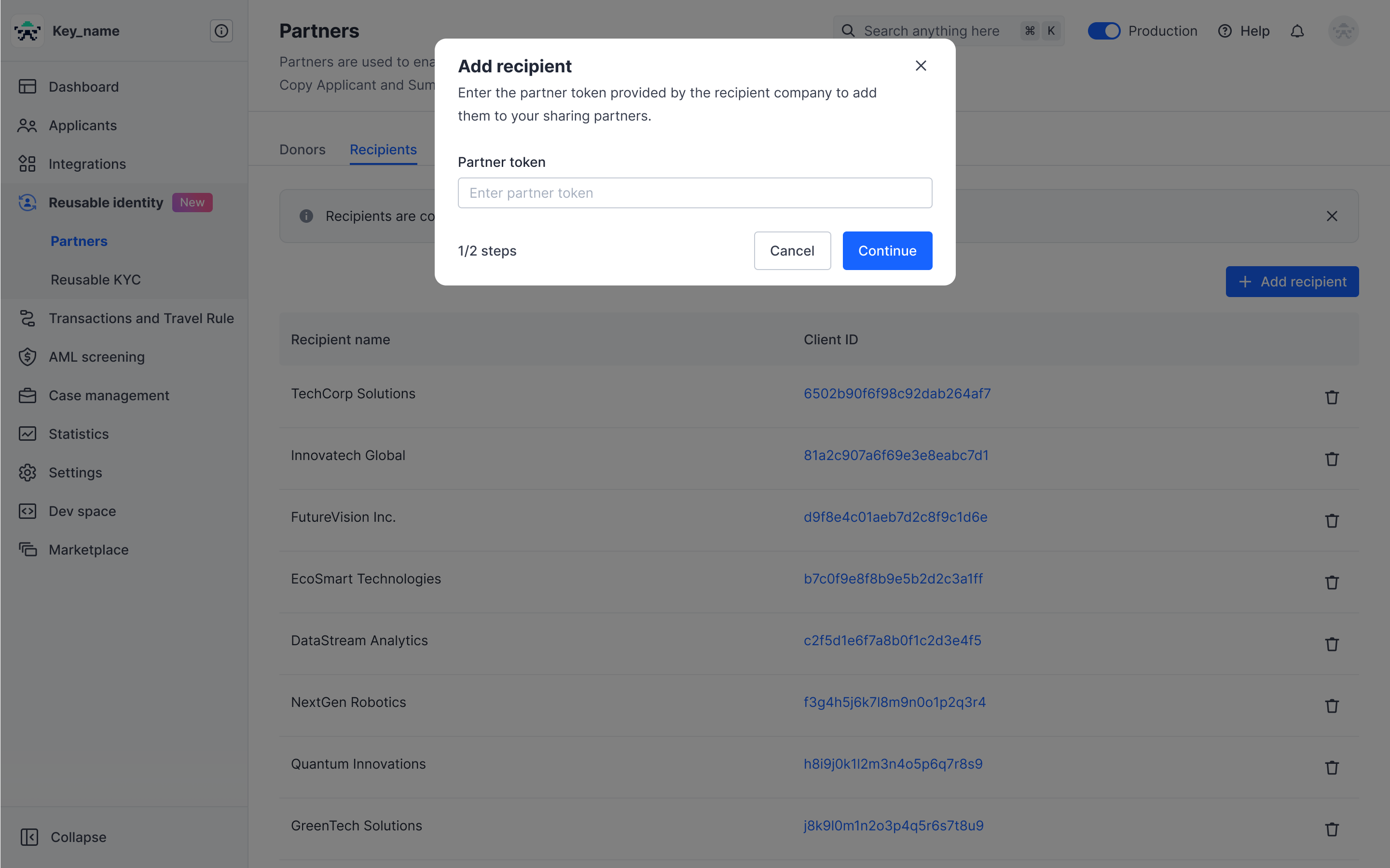
- Enter the partner token provided by the recipient company.
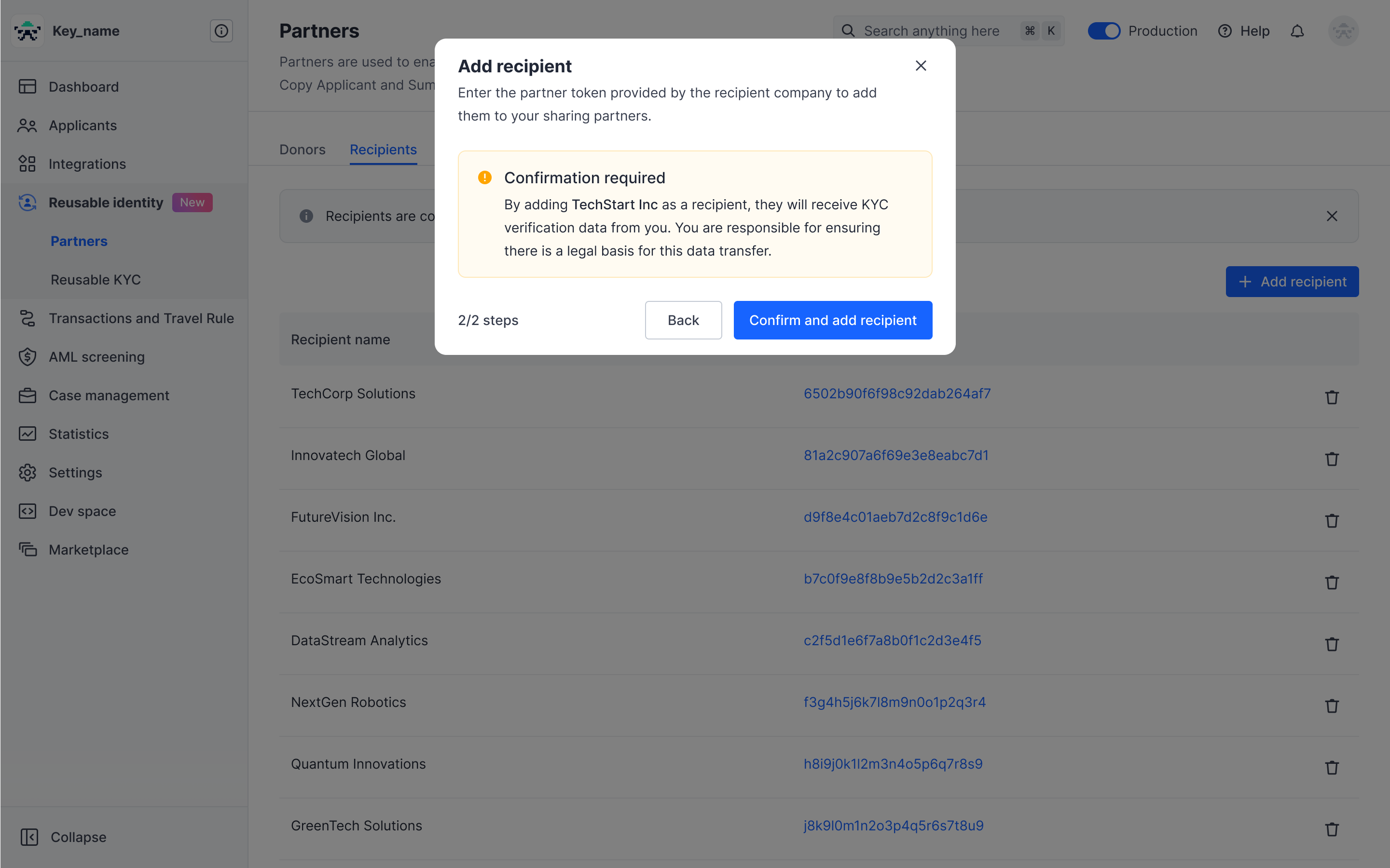
- Confirm you want to add the specified company as a recipient.
Remove partner
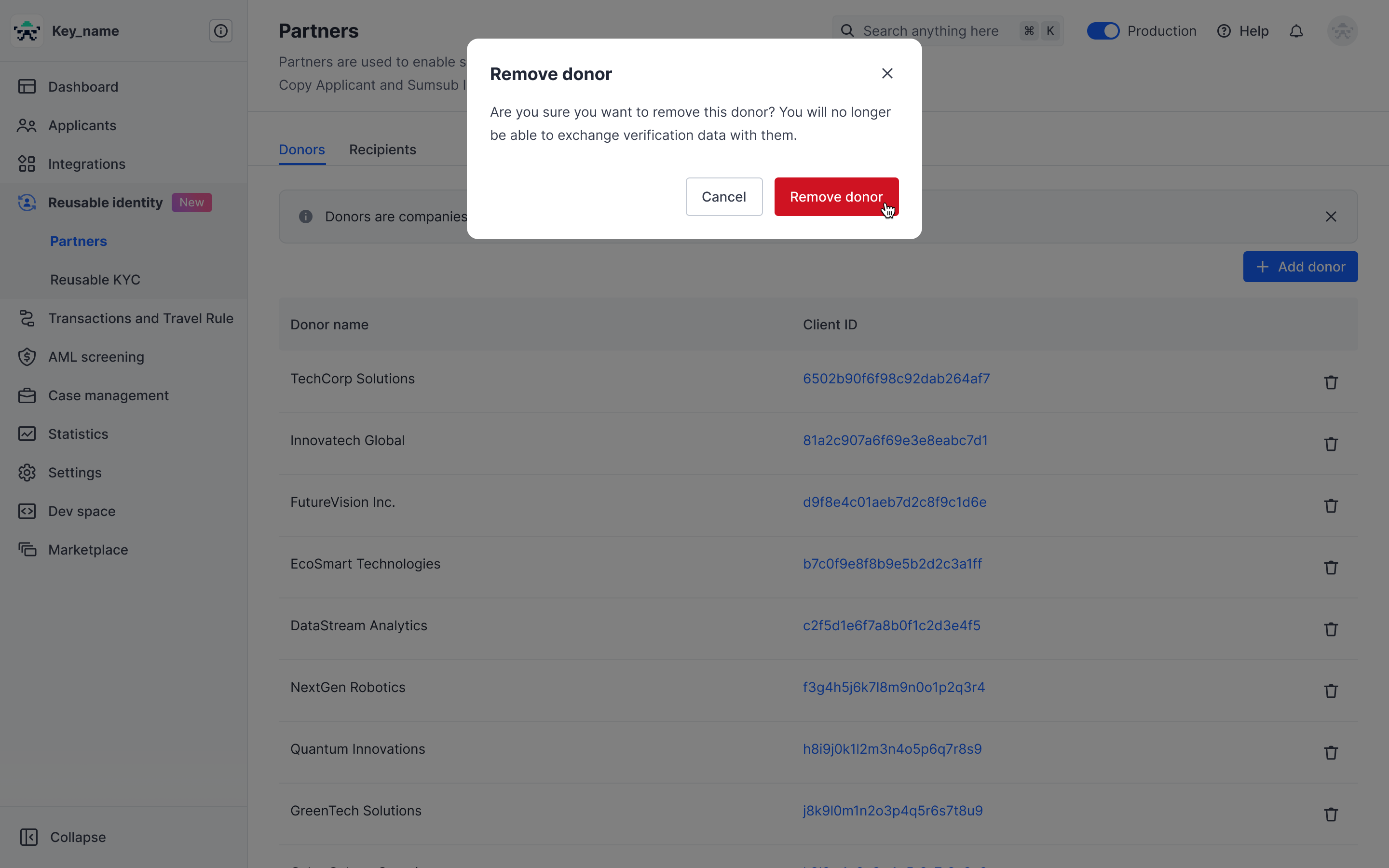
You can remove a sharing partner from your partner list from both the Donor and Recipient tabs.
- In the Dashboard, navigate to the Partners page in the Reusable identity section.
- Open the relevant tab.
- Select a partner and click on the bin next to the partner’s name.
Share levels with Partners
Partner levels let you share specific settings in order to meet regulators’ requirements and standardize verification flows.
This feature is available for customers of Reusable KYC and Copy Applicant.
Partner levels help you eliminate the off-platform manual alignment and ensure that the data you receive meets your local regulatory standards.
Key capabilities:
- Lock configurations. Recipients define and share levels in read-only mode that defines specific verification requirements.
- Instant access. Once a level is shared, it is ready for use.
- Automatic synchronization. Once a level is updated on the recipient’s side, the new settings apply to the donor’s level automatically.
NotePartner Levels are currently available for direct one-to-one partnerships only. This feature is not compatible with the Reusable KYC Network.
Sharing levels as recipient
To share a level:
- Navigate to Individual levels.
- Open the level you would like to share or create a new one.
- Define the configuration that will be shared.
- Select Share level from the three-dot menu in the upper-right corner of the screen.
- Review the configuration and select the donor you want to share with from the drop-down list.
- Click Share level.
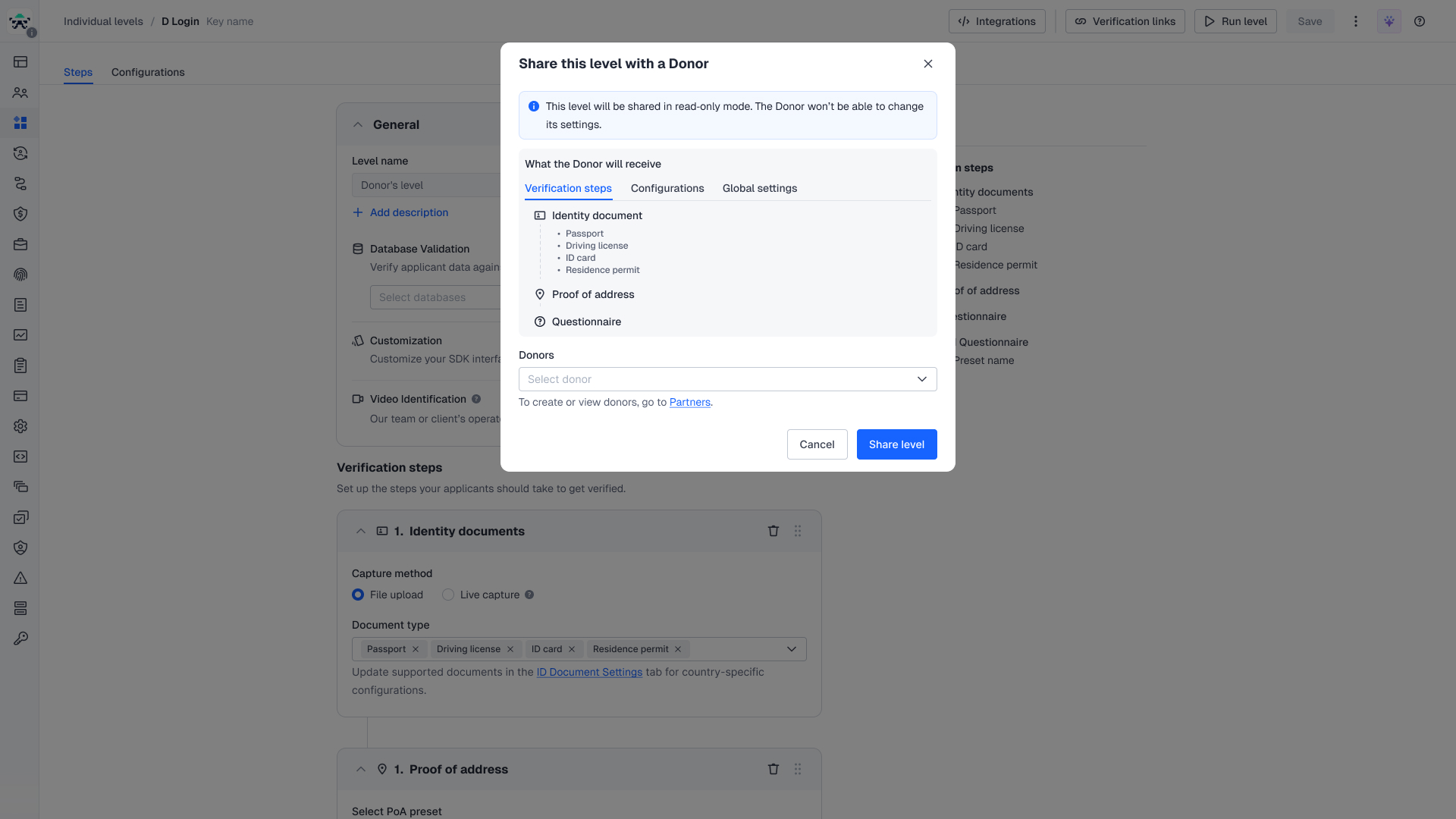
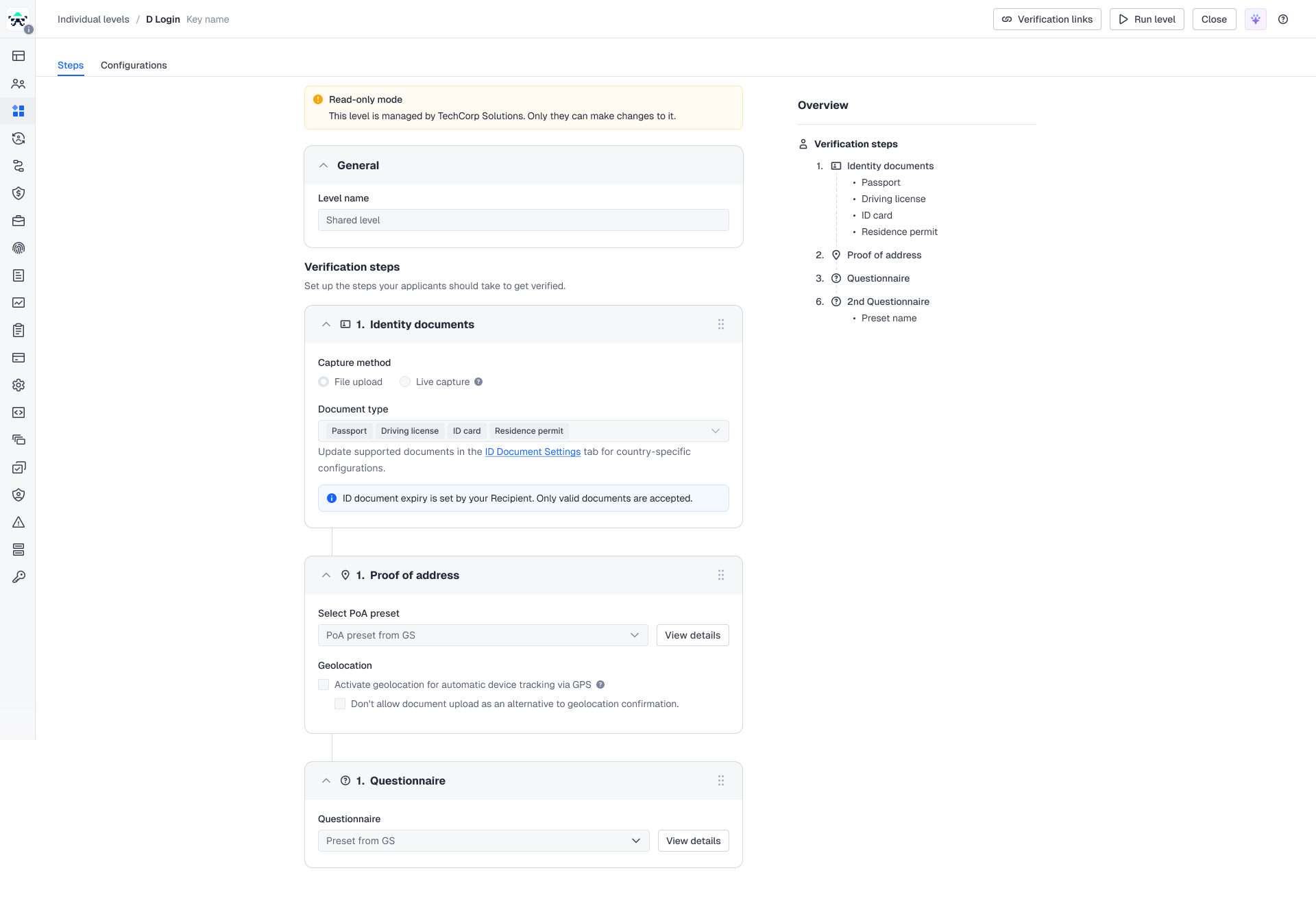
You can share various settings, including PoA presets and questionnaires, in the read-only mode:
| Configuration | Description |
|---|---|
| Level configurations (location) | Country restrictions for verification steps. |
| Level configurations (location) | IP settings. |
| Level configurations (location) | USA resident settings. |
| Level configurations (location) | VPN detection. |
| Level configurations (id document settings) | Custom ID document settings. |
| Level step | Identity document. |
| Level step | Liveness. |
| Level step | Email verification. |
| Level step | Phone verification. |
| Global setting | ID document expiry settings. |
| Global setting (PoA preset) | Preset name. |
| Global setting (PoA preset) | PO Box addresses. |
| Global setting (PoA preset) | Countries and territories. |
| Global setting (PoA preset) | POI documents as POA documents. |
| Global setting (PoA preset) | Accepted languages. |
| Global setting (PoA preset) | Document types. |
| Global setting (PoA preset) | Consider only the document issue date. |
| Global setting (PoA preset) | Document types. |
| Global setting (PoA preset) | Custom country configurations. |
| Questionnaires | Questionnaire settings. |
| Questionnaires | Questionnaire content. |
Note
- Some of your global settings will also be shared.
- If you have custom ID document settings on the level, those will be shared. If you don't have the ID document settings, they will be inherited from the Global settings.
- None of these settings will override your donor’s Global settings.
- If a specific service is not enabled on the donor’s side, you will not be able to share such a level as a recipient.
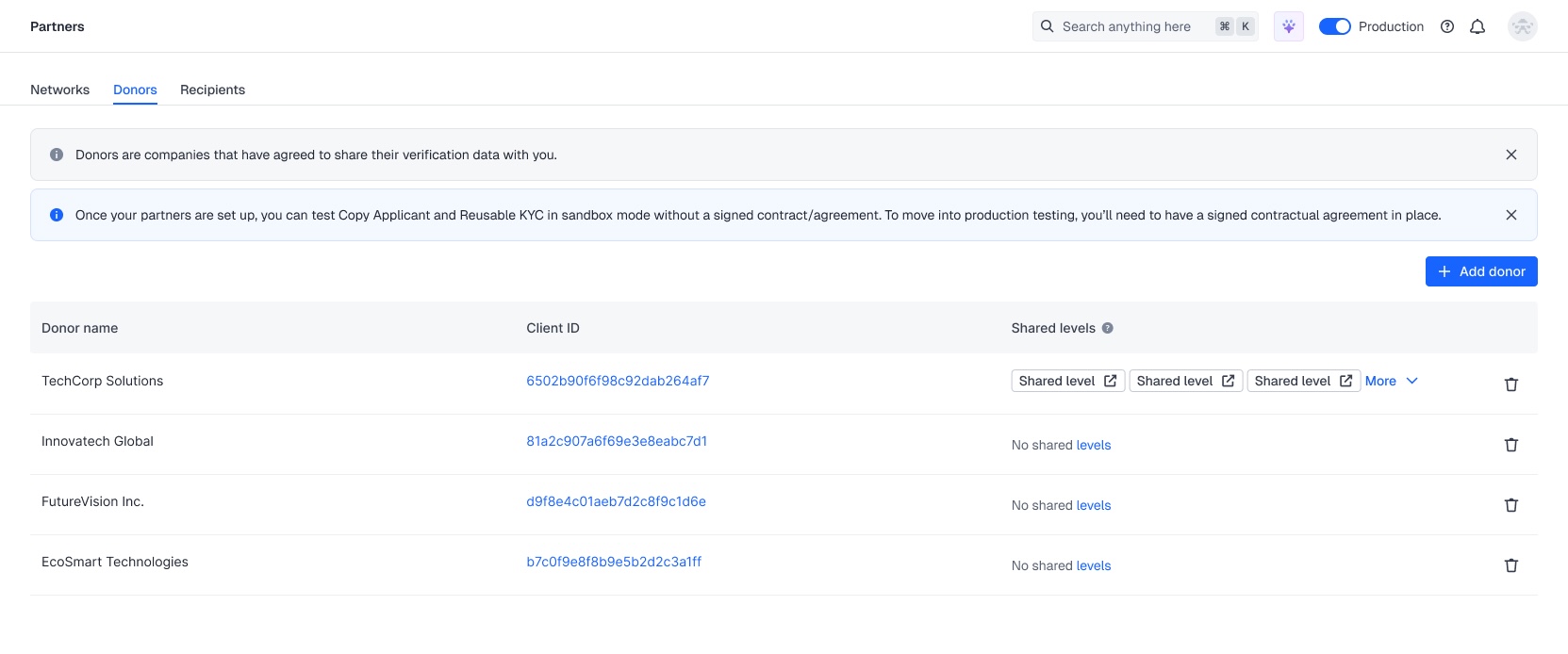
Once shared, all partner levels are displayed on the Reusable Identity Partners page on the Donors tab.
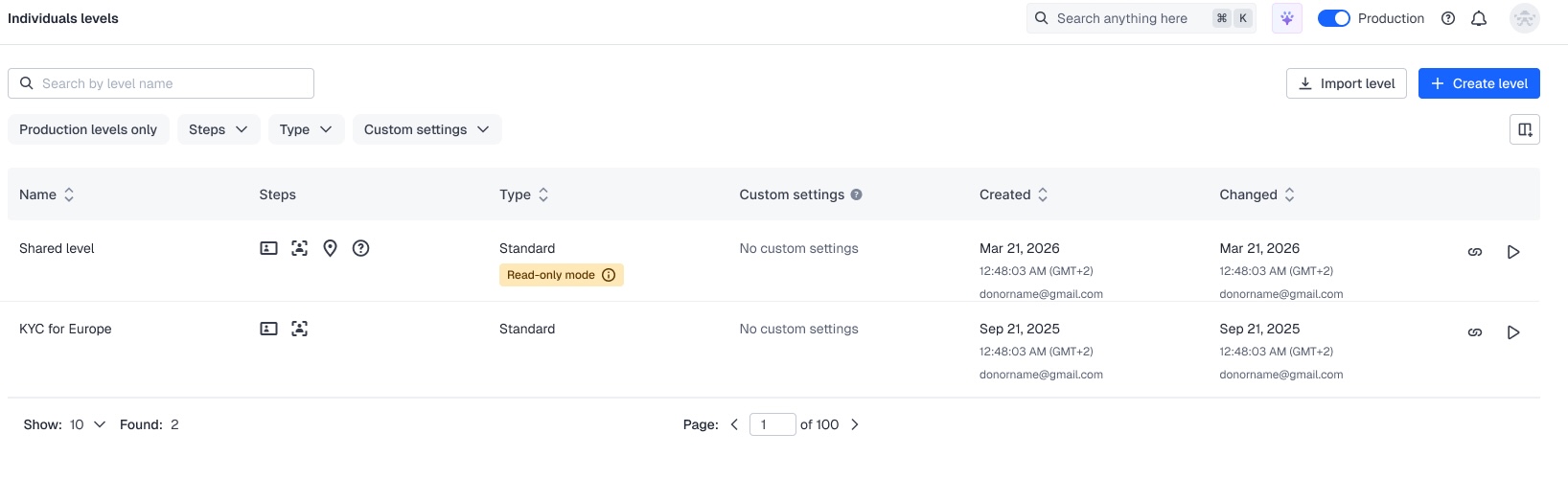
As a donor, you can also find them in your Integrations tab. They are displayed in the Type column with the read-only badge.
Using partner levels
If you are a donor and a partner level is shared with you by your recipient, you can start using the level and putting your applicants through it right after sharing.
Updated 22 days ago