
Transaction page overview
Review every detail behind a transaction in one place.
The transaction page shows everything associated with a single transaction: its summary, details, risk assessment, and related activity. This article describes each section of the page.
Summary block
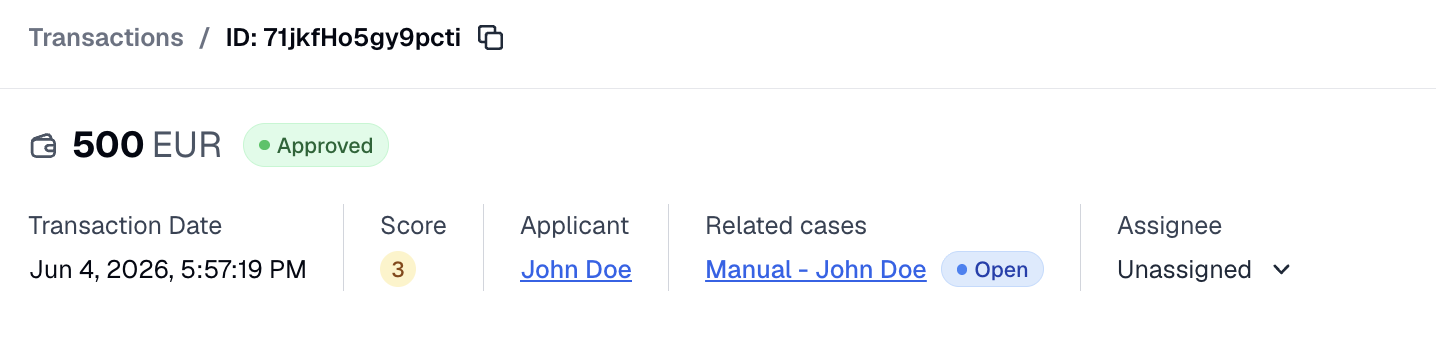
On the left, the summary row identifies the transaction at a glance:
- Transaction summary — what is shown depends on the transaction type: for a Finance transaction, the amount and currency (for example, 1,000 USD); for other types, the type label (for example, Verification session); for an iGaming Session, the wagered total and net result.
- Status — a colored pill showing the transaction's current review status: Approved, Rejected, Requires action, Awaiting user, Pending, or Not scored. For more information on what each status means, refer to this article.
- Confirmed — a badge that appears once the transaction has been confirmed, indicating that the decision is final and the transaction has been removed from the review queue.
- Inactive — a tag shown when the transaction is no longer active.
On the right are the action controls — the buttons and the more-actions menu for reviewing and managing the transaction, covered in Manage transactions.
Below the summary row, the header shows a row of information units:
- Transaction Date — the date the transaction took place.
- Score — the transaction risk score, shown once the transaction has been scored.
- Applicant — the applicant the transaction belongs to; shown as a link to their profile when one is available, otherwise as plain text.
- Related transaction — for a mirrored Travel Rule transaction, a link to its Initial or Mirrored counterpart, together with that transaction's status.
- Mirrored transactions — for a transaction that has several mirrored copies, a See all popover listing them.
- Related cases — differs from the Related transactions tab: the transaction header provides a popover that lists the AML cases this transaction belongs to, rather than other transactions. Requires the View case management permission.
- Assignee — the compliance officer the transaction is assigned to, with a selector to change or clear the assignment.
General info
The General info block contains the transaction details panel, together with the transaction's risk assessment and the working data operators add to it:
- Risk score and matched rules
- Tags
- Notes
- Custom properties
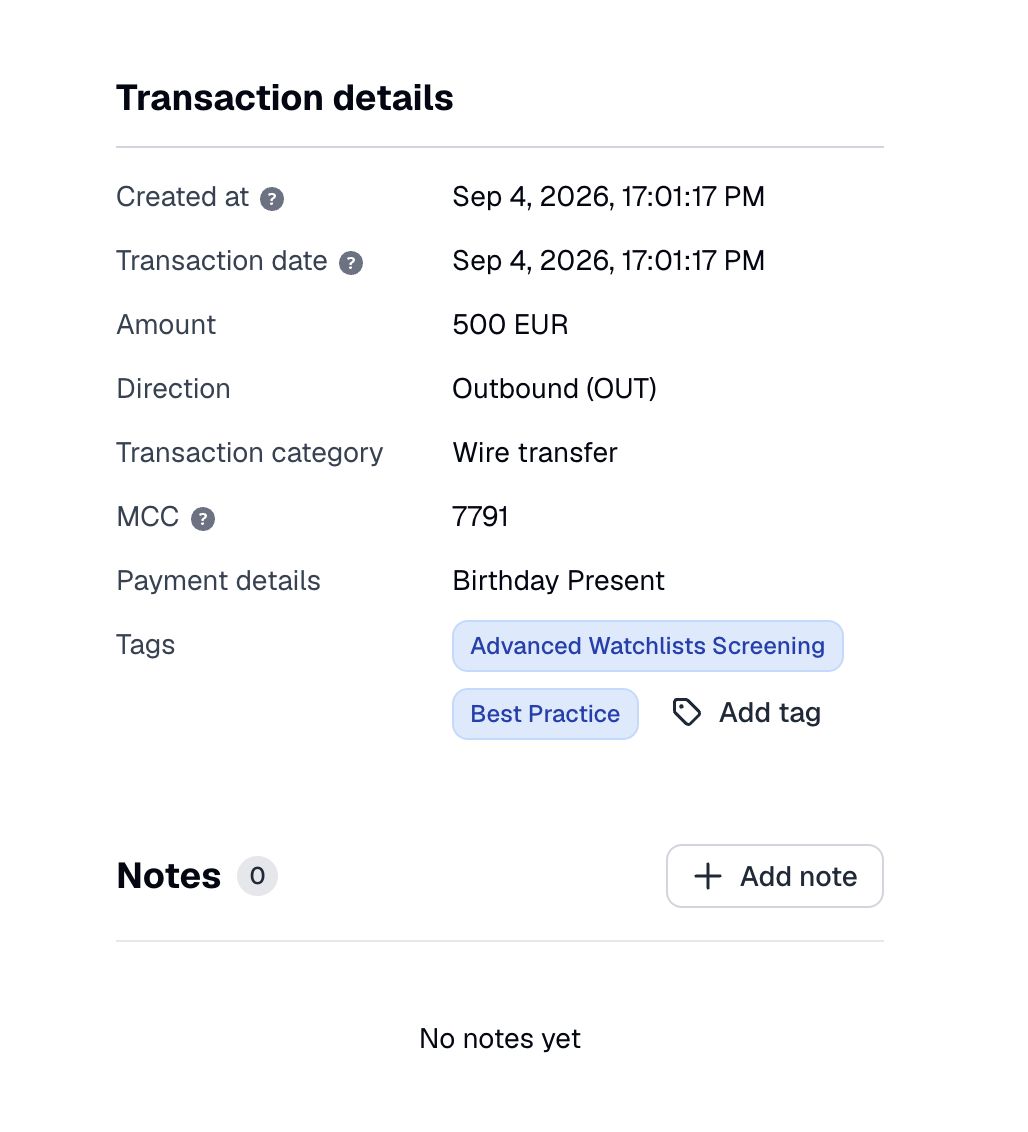
Transaction details panel
The Transaction details side panel describes the transaction itself. A core set of fields appears for every transaction, and additional fields appear depending on the transaction type.
Risk score and matched rules
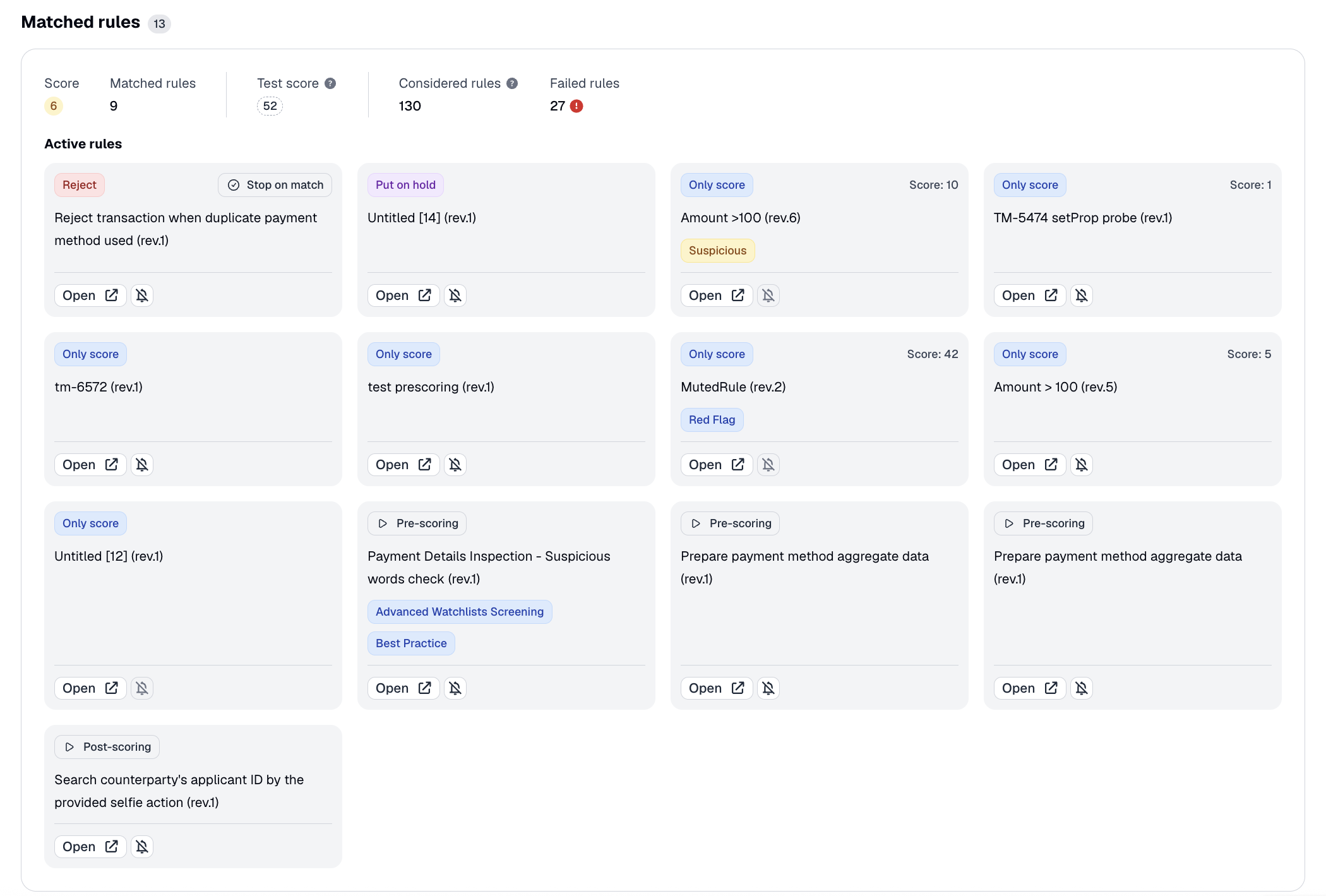
Every scored transaction has a risk score and a list of the rules it matched. The score is calculated automatically when the transaction is scored, and it is the same value shown by the score badge in the header.
NoteA transaction that was imported without scoring, or whose scoring failed, has no score until it is rescored.
The matched-rules list shows each rule that fired during scoring. For each rule, the list shows its name and title, the score it contributed, the tags it applied, and the action it produced (for example, Approve, Reject, or Require manual review). Rules that were evaluated but did not match are tracked separately, and the system does not show them in this list.
Mute Rule
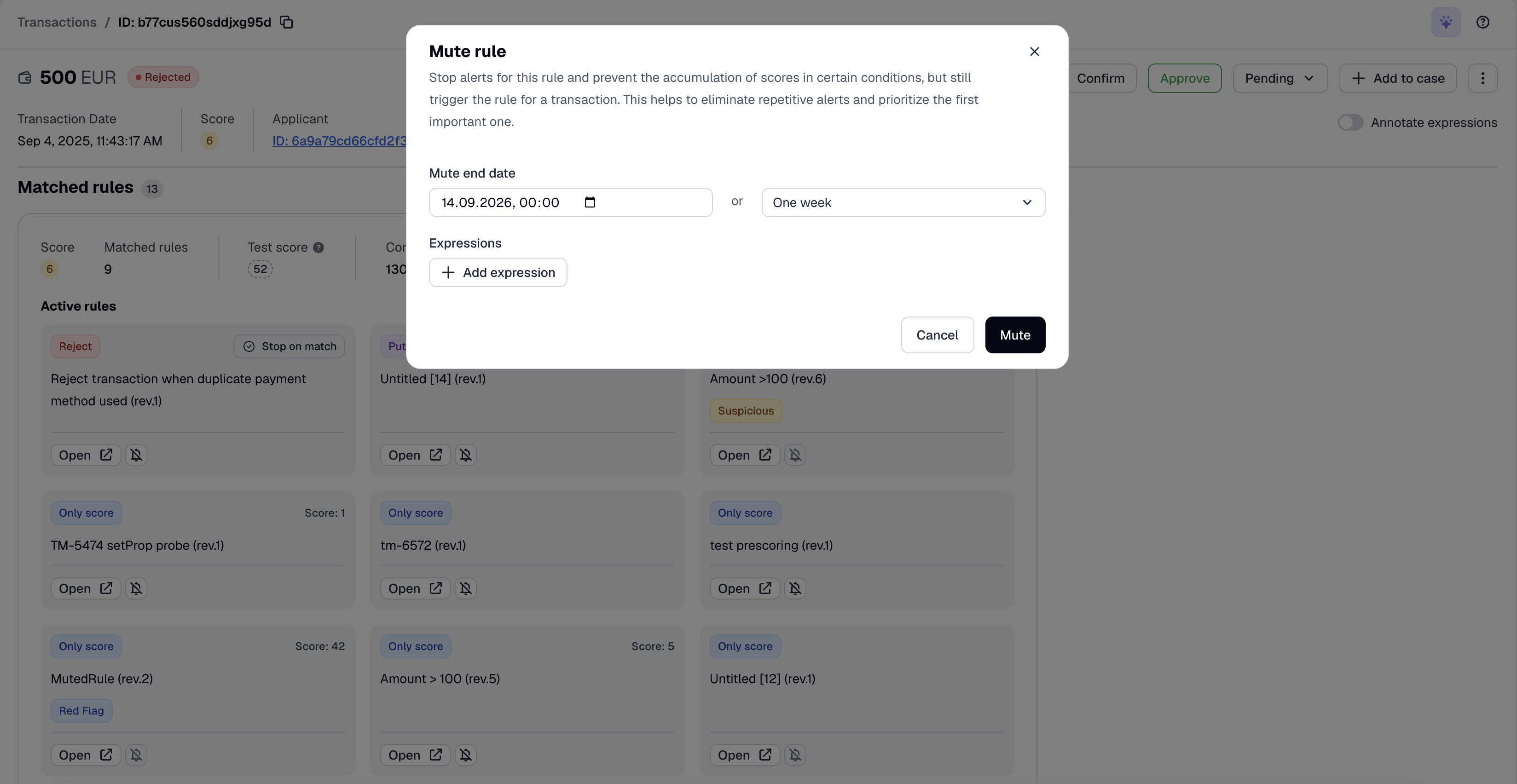
Using Mute Rule, you can suppress a specific rule from triggering for a given applicant in the future, without disabling the rule globally. The rule still evaluates and triggers, but no alert is raised and no score is accumulated for it. When muting a rule, you can specify conditions under which the mute applies.
Tags
Tags label a transaction for filtering and follow-up. A transaction can carry three kinds of tag:
| Tag origin | Set by | Can an operator remove it? |
|---|---|---|
| User tag | An operator, manually. | Yes |
| Violation tag | Scoring, when a problem is detected (for example, an unknown currency rate). | No |
| System tag | The rule engine during scoring. | Yes |
To add a tag:
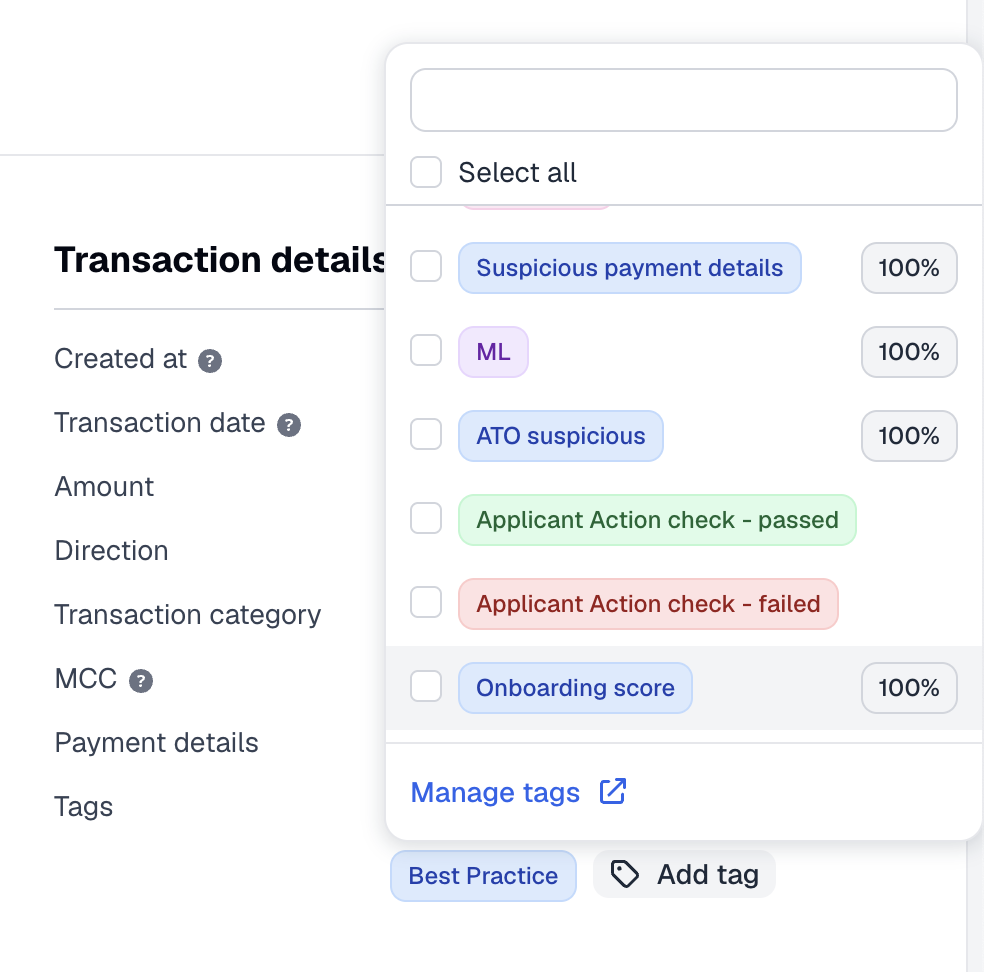
- In the Transaction details block, open the tags control.
- Select the label.
- You can create a new tag by clicking Manage tags. The new tag is stored as a user tag.
- Adding and removing tags requires the Manage TM transactions - Review permission.
- Removing a tag affects both user tags and system tags.
- Violation tags cannot be removed.
You can manage tags through the API — add tags, remove tags, or read the current tags.
Notes
Notes let operators record context and decisions on a transaction. Operators can add a note, and can edit or delete an existing one.
Working with notes requires the Manage TM transactions - Review permission. Operators can only edit or delete a note they wrote themselves — unless they have the Admin role, in which case they can edit or delete any operator's notes.
Transaction custom properties
The Properties panel shows the transaction's custom properties: free-form key/value pairs defined by your integration.
Properties can be:
- Submitted with the transaction when it is created.
- Set by an operator.

To edit properties, you can use this API method:
Request example:
curl -X PATCH \
    'https://api.sumsub.com/resources/kyt/txns/631f268442d8290001e1eee8/props' \
    -H 'Content-Type: application/json' \
    -H 'X-App-Token: <your-app-token>' \
    -H 'X-App-Access-Sig: <your-signature>' \
    -H 'X-App-Access-Ts: <unix-timestamp>' \
    -d '{
          "customProperty": "New custom value",
          "customPropertyTwo": "Another custom value",
          "customPropertyThree": "One more custom value"
       }'
NoteThis method only updates the stored
props. The transaction's ownscore,scoringResult(matched rules), andreviewstatus are not recalculated, and the response still contains the previous result — even if a rule depends on the property you changed.
- Rules evaluated after this call, including aggregations, use the new
propsvalues.- To re-evaluate the patched transaction itself, call Rescore transaction.
Analytics
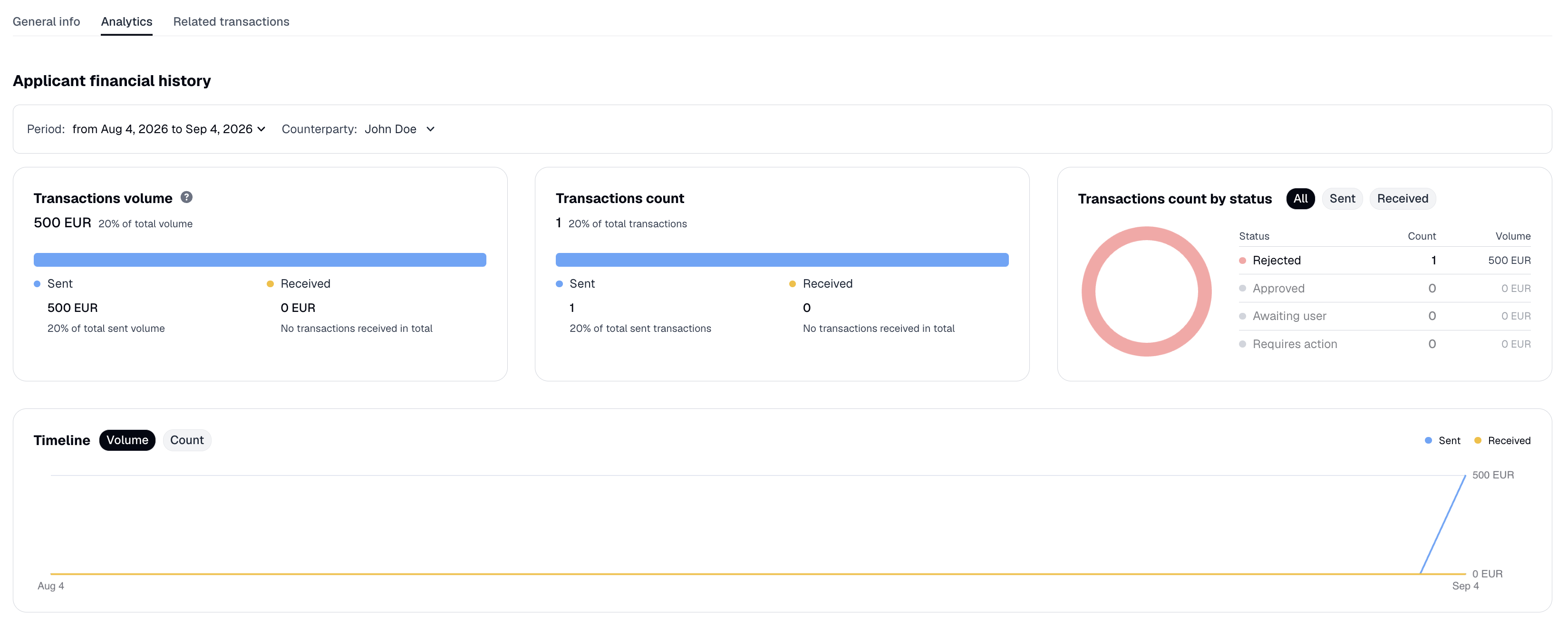
The Analytics tab summarizes the selected party's transaction activity over time: total volume, total count, a breakdown by status, and a timeline. It appears for finance and Travel Rule transactions that are not currently masked.
By default, this tab covers the month leading up to the transaction date. You can select a specific counterparty to focus the figures on that relationship. The system shows the volume and count percentages when a single counterparty is selected.
Monetary totals are presented in your workspace default currency. If there is no activity in the selected window, the tab shows an empty state.
For financial transactions, you can review such information as: Transactions volume, Transactions count, Transactions count by status, and the Transactions volume for the specified period as a graph.
The information should be interpreted in the following manner:
| Data type | Description |
|---|---|
| Transactions volume | The amount of money sent, received, or withdrawn by the user. |
| Transactions count | The number of transactions performed within the specified period. |
| Transactions count by status | The number of approved, declined, or suspended transactions split by direction. |
NoteAll the sums are displayed in the default currency specified in the General settings.
Related transactions
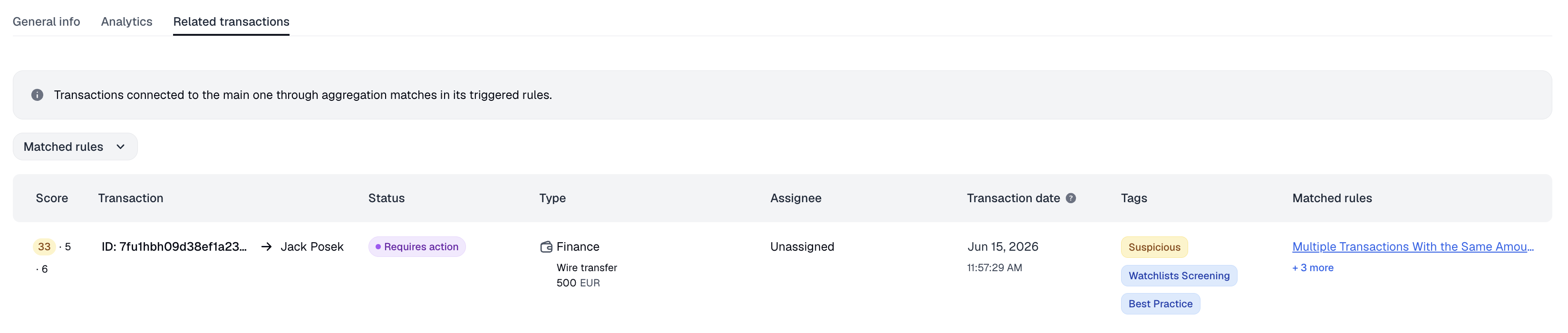
The Related transactions tab shows the transactions taken into account by the triggered rules when scoring this transaction. It appears whenever the transaction has an applicant. Each row links to the related transaction's own details page.
You can filter the results by Matched rules to narrow the list to transactions that share specific rules with the current one.
Updated 6 days ago