
KYC settings wizard
Ensure every essential setting is properly covered in your KYC integration.
The KYC Settings Wizard organizes key verification settings into a structured, step-by-step checklist to streamline your initial integration setup. Settings are grouped into logical sections — such as Age & Date of Birth, Duplicates, PoI settings, and PoA settings — so you can track setup progress at a glance.
Each section includes a short description, a completion checkbox, and a direct link to the relevant configuration page in the Dashboard. Items in progress are labeled Next in progress; once configured, you can mark them Complete.
Given the breadth of KYC configuration options, the wizard simplifies onboarding and helps ensure your account setup meets both business and regulatory requirements.
NoteThe wizard provides general recommendations only. Final configuration decisions are the responsibility of your team and compliance officers.
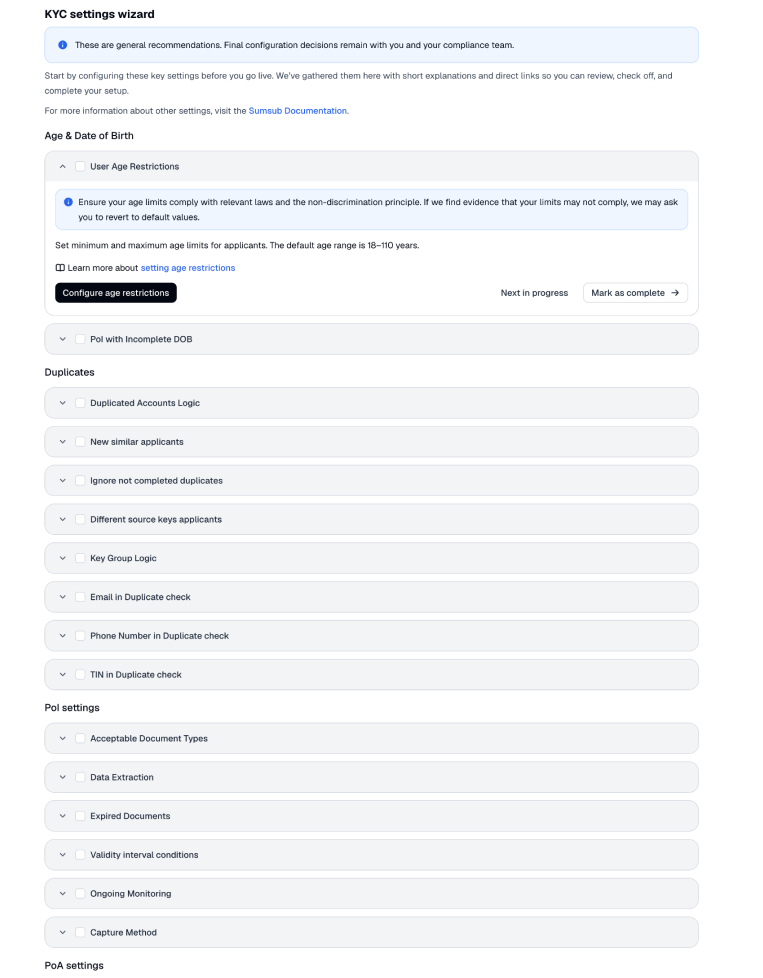
How KYC setting wizard works
The KYC settings wizard tab is located under Configurations → Applicant verification → Individual levels → Settings in the Dashboard. It contains several configuration sections that must be reviewed and adjusted to ensure a complete and compliant onboarding setup:
- Age & Date of Birth
- Duplicates
- PoI settings
- PoA settings
- Data Format & Processing
- Advanced Applicant Workflow settings
- Technical & Security
Each section contains a specific configuration description. Every setting includes a checkbox, allowing you to track whether it has already been completed.
NoteThe checkbox state applies to your entire account and can be updated by members with the Manage Company Settings permission.
You can click any setting to view its description, a link to the relevant documentation, and a direct link to the configuration page in the Dashboard.
Where possible, the wizard links directly to the exact setting within the verification level and highlights it. Otherwise, it takes you to the closest relevant screen.
Updated 3 days ago