
Facial Age Estimation
Security, compliance, and improved customer experience for age-sensitive services.
The Sumsub’s Facial Age Estimation solution uses the in-house Liveness technology to determine an individual's age based on their facial features and also can detect sophisticated fraud attempts with video footage, masks, and deepfakes.
One of the main cases for the technology is to detect teenage users who need parental consent or cannot use applications at all.
The algorithms usually allow for a non-significant 1-2 year difference. You can use these estimations to tailor the verification flow as needed.
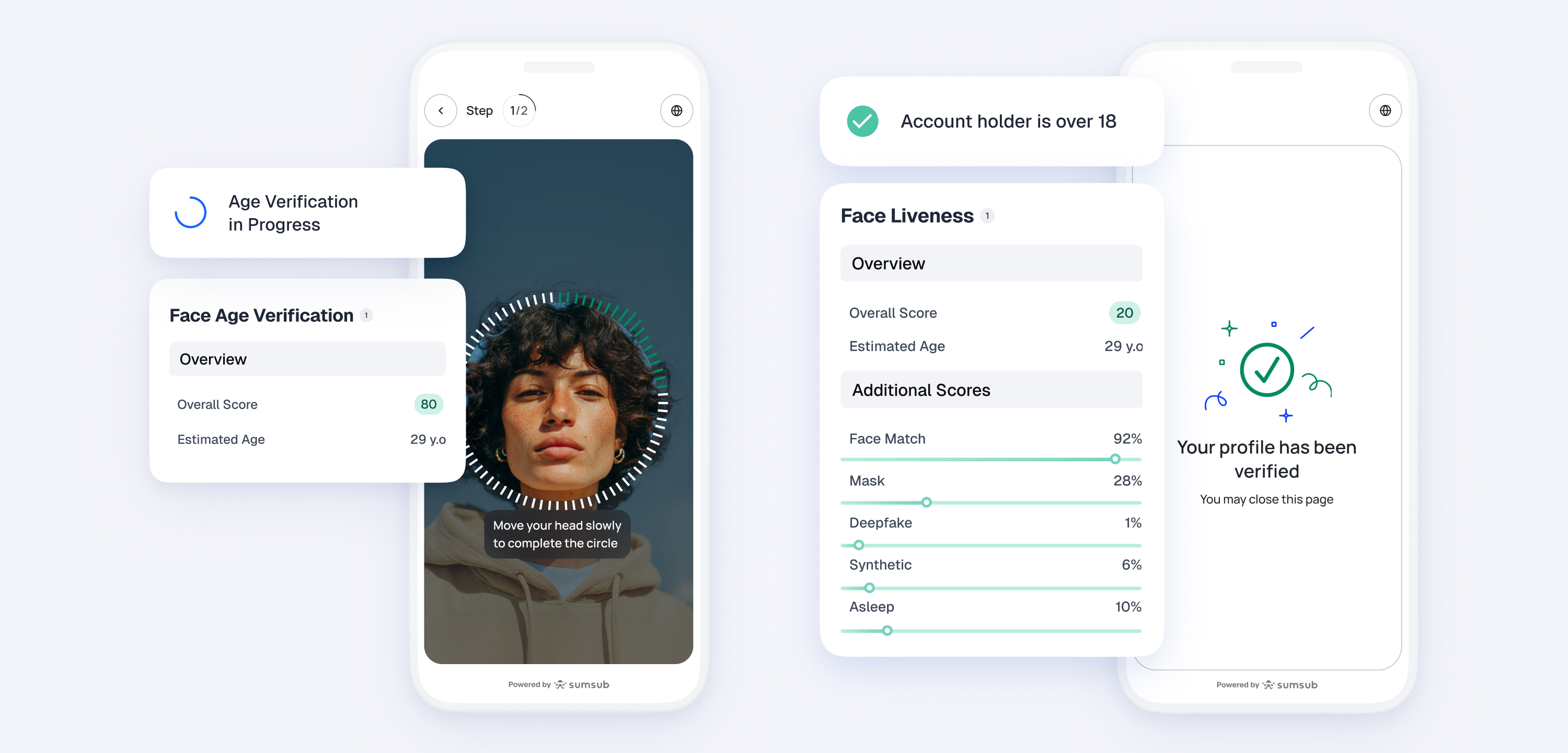
To identify underage users accurately, we suggest using an age buffer of 3, 7, or 10 years, depending on the sector. For example, implementing a 10-year buffer would mean that any user who appears to be 28 years old or younger will be asked to present an ID. If your case allows for fewer restrictions, we propose using a 7-year buffer, which means having an age threshold of 25 years.
This strategy can be easily implemented through our condition-based Workflow builder.
Did you know?Sumsub is approved by the German Commission for the Protection of Minors in the Media (KJM) as an age verification solution in line with German regulatory standards.
Get started with Facial Age Estimation
Use age estimation to route applicants to different verification flows, depending on their age and the probability level established by the system:
- If the Enable option is available for your account, activate the feature yourself:
- In the Dashboard, go to the Solutions page.
- Find the Facial Age Estimation card and click Enable.
- If the Enable option is not available for your account, contact us to activate the feature. Once enabled, add the age estimation setting to at least one verification level to activate it. The product card displays Active as soon as at least one level has the setting turned on.
- In the Dashboard, go to the Verification levels and open the level of your interest.
- Select Configurations -> Advanced Settings. In the Facial Age Estimation section, check the Enable Facial Age Estimation box.
- Set up the WebSDK and MobileSDK integration.
- Add Advanced Liveness or a Web camera photo check to the level step.
- Conduct verification and review results.
Updated about 1 month ago