---
updatedAt: 2026-09-08T15:06:20.000Z
---
Fetch the complete documentation index at: https://docs.sumsub.com/llms.txt. Use this file to discover all available pages before exploring further. Append .md to any documentation page URL to get its markdown version.
# Liveness and Deepfake Detection
Get advanced security with Sumsub's liveness check and deepfake detection.
[Liveness verification](https://sumsub.com/biometric-verification/) is an advanced detection technology designed for performing facial biometric checks.
Our neural network maps a face in 3D and analyzes it in real time. In under a second, it confirms the applicant is a real, live person (not a deepfake, AI-generated image, paper mask, photo of a screen, or doll) and matches them to the account and documents on file.
{`
`}
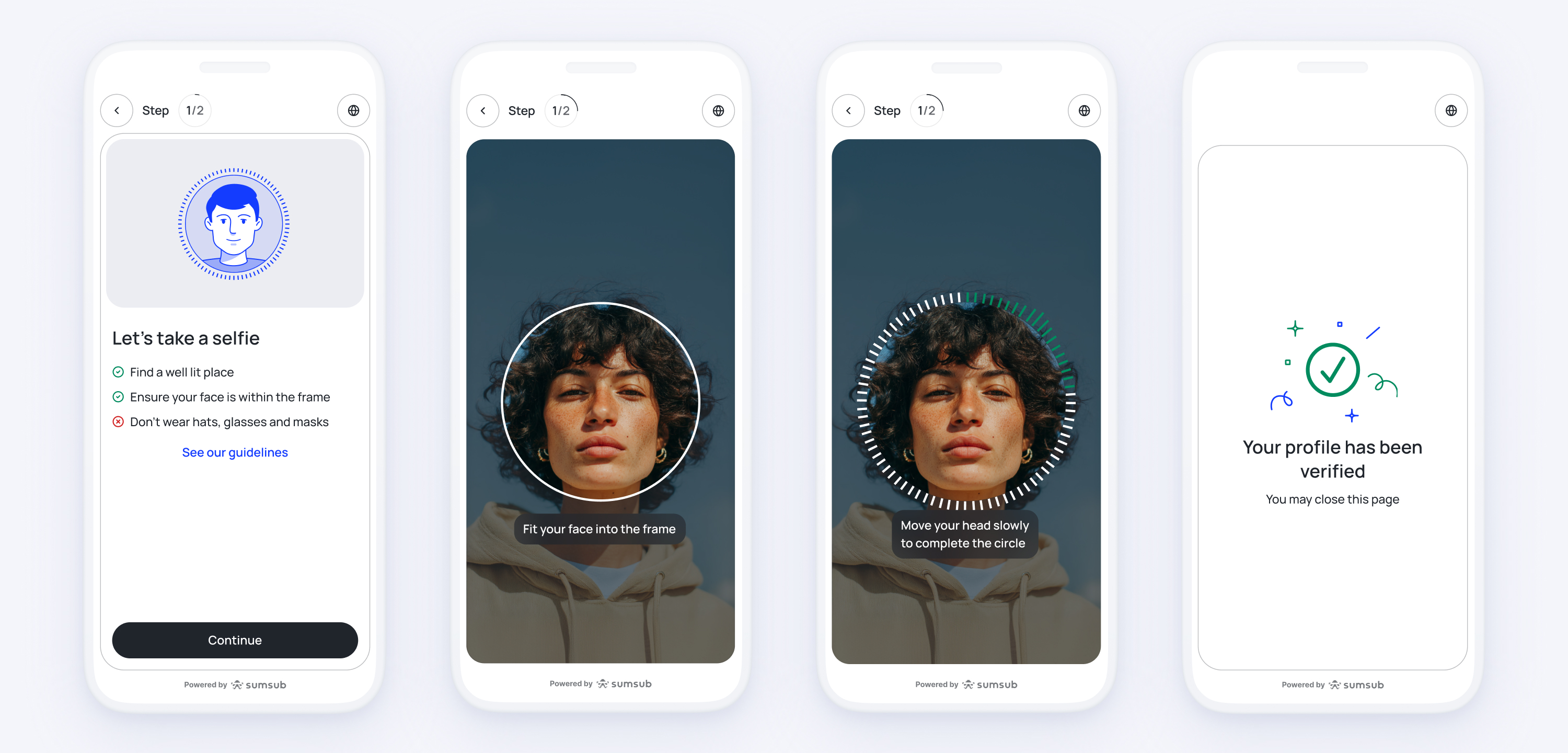
{`
Liveness check via embedded mobile SDK.
`}
{`
`}
The Liveness technology is also aimed to recognize forced verification by detecting glasses, phone up to ear, sleeping person, and so on.
Such wide capabilities of Liveness allow you to use the product independently or in the context of user verification. Constantly developing, Liveness is far ahead of many traditional methods of onboarding and authentication:
* Fast and safe onboarding in seconds.
* Detects physical and digital spoofs: high-resolution video, deepfakes, lookalikes, masks, dolls, and other lifelike figures.
* Stops sophisticated fraud through multi-source data correlation.
# How Liveness verification works
For applicants, Liveness verification is extremely easy and fast to pass, as it can be passed both on desktop and mobile devices.
The verification process consists of the following steps:
1. An applicant reads and accepts our terms and conditions in addition to our personal data processing policy.
2. The brief instructions on how to pass the check appear on the screen.
3. The applicant positions their face in the frame and follows the instructions.
4. The system processes the data and comes up with results.
# Get started with Liveness verification
Perform Liveness verification via the Sumsub SDK that takes care of every stage included in the process:
1. Configure the [WebSDK](https://docs.sumsub.com/sumsub/docs/web-sdk) and [MobileSDK](https://docs.sumsub.com/sumsub/docs/mobile-sdk) integration.
2. [Create a verification level](https://docs.sumsub.com/sumsub/docs/get-started-with-verification-level) and add a **Selfie** step with the **Advanced liveness check** type.
3. Review verification results.
# Review verification results
To review the verification results:
1. Open the [Applicants](https://cockpit.sumsub.com/checkus#/applicants) page and select an applicant who passed the Liveness check.
2. In the profile, navigate to the [Liveness](https://docs.sumsub.com/sumsub/docs/user-verification-check-results#liveness) section and review the results.
### Tip
To understand the **Bad selfie** rejection label and how to address it, follow the steps in the [SumsubCare guide](https://care.sumsub.com/en/articles/684322-bad-selfie-rejection-label) (requires a Sumsub Dashboard login).
# Prevent unauthorized applicant activities
Use Liveness as an [applicant action](https://docs.sumsub.com/sumsub/docs/applicant-actions) for recurring verification:
1. Configure the [WebSDK](https://docs.sumsub.com/sumsub/docs/web-sdk) and [MobileSDK](https://docs.sumsub.com/sumsub/docs/mobile-sdks) integration.
2. Set up a [verification level](https://docs.sumsub.com/sumsub/docs/verification-levels) and from the **Type** drop-down list, select **Applicant actions**.
3. Add **Advanced liveness check** as a **Selfie** type.
4. Review the action data by opening an applicant profile and navigating to the [Actions](https://docs.sumsub.com/sumsub/docs/applicant-action-check-results) section. Alternatively, you can use the [Sumsub API](/reference/face-authentication) to retrieve the results.